This users’ manual covers the GC02S1 EVK, based on the GC02S1.
The contents of the Evaluation Kit are described in the table below:
Table 1. Evaluation Kit Contents
Supplied items
GC02S1 EVK Board
One EVK board
✔
One USB-C cable
✔
One SIM card
✔
Figure 1. GC02S1 EVK’s Box
The GC02S1 EVK is designed to operate in the following
conditions:
Table 2. Operating Parameters
Parameter
Range
Note
Temperature
-36 to +73 °C
3GPP Compliant Operating Temperature Range
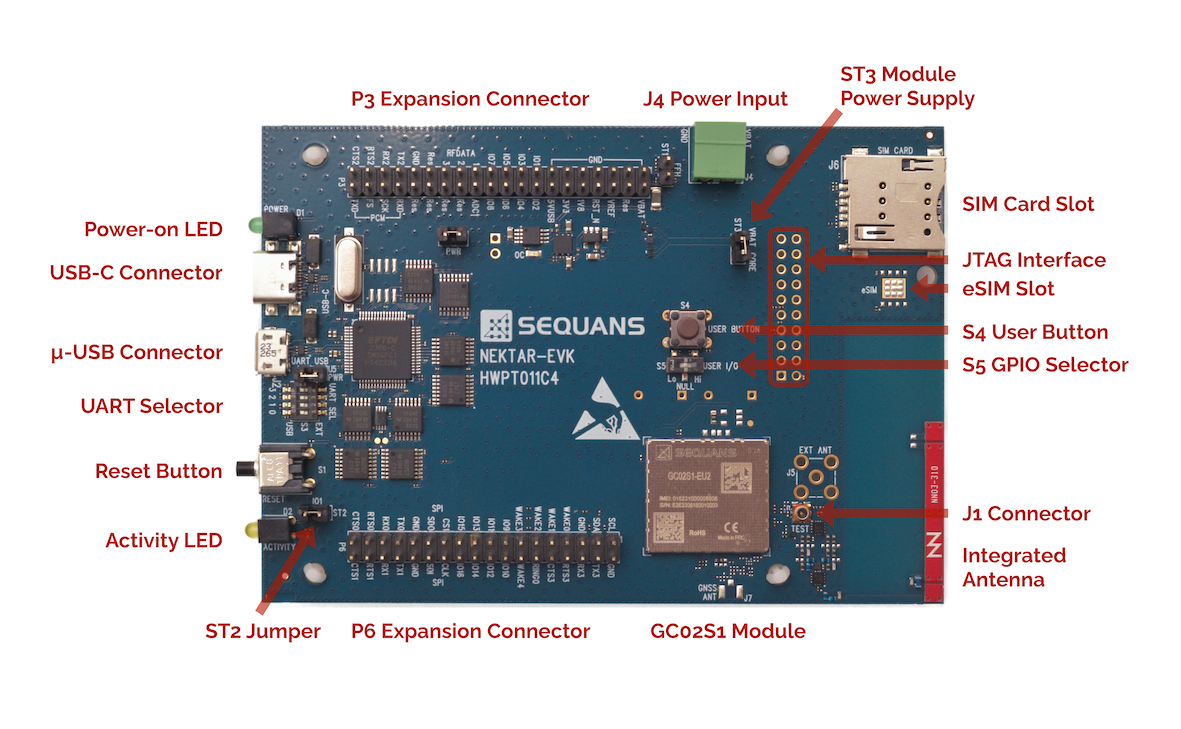
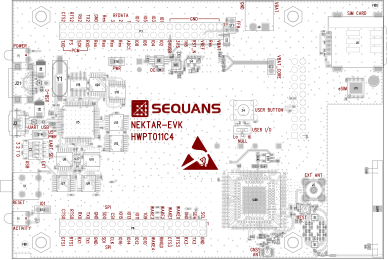
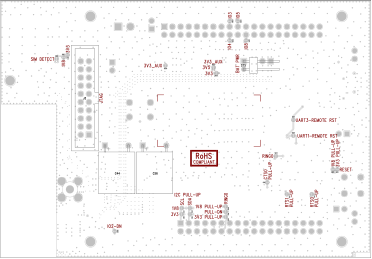
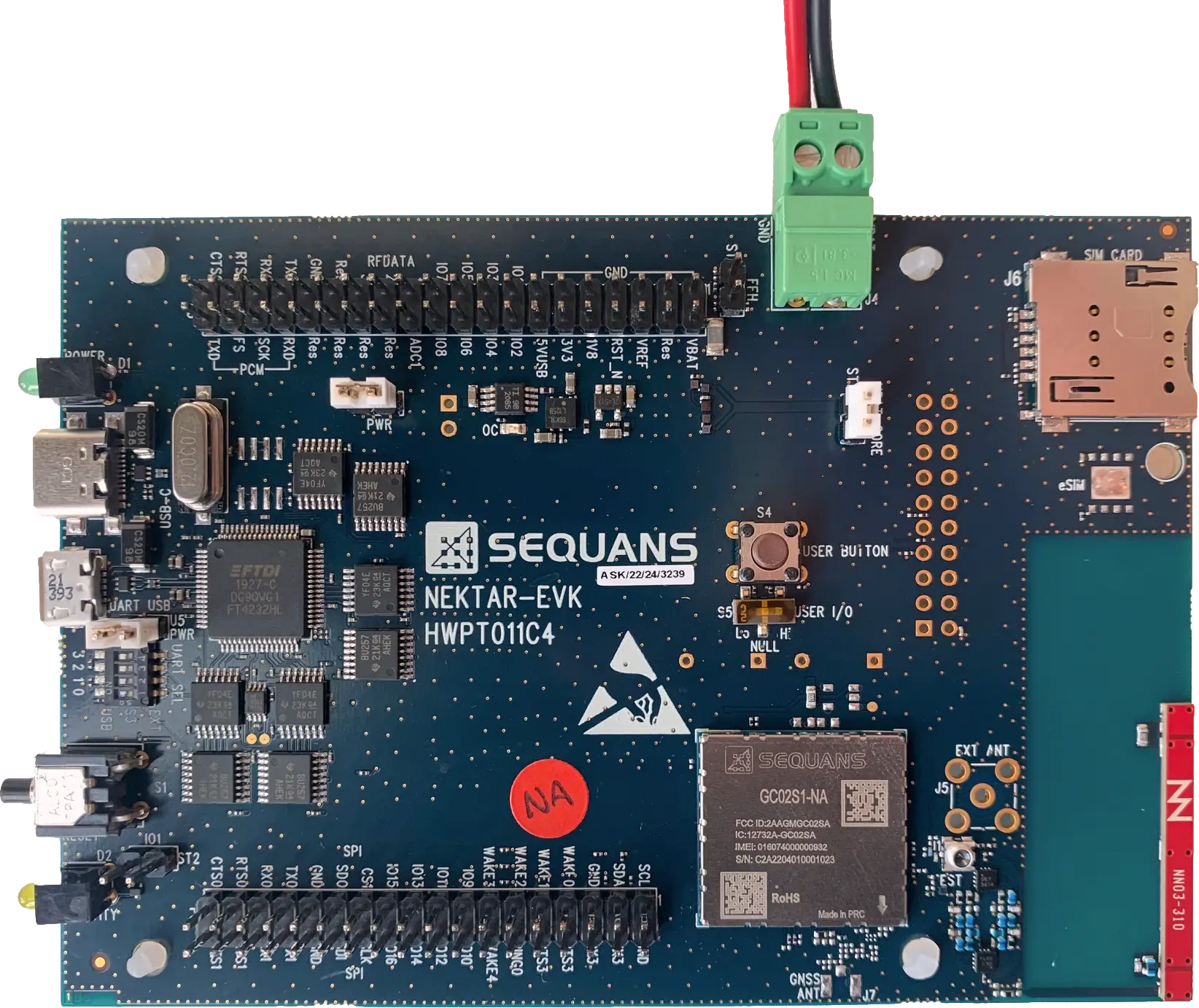
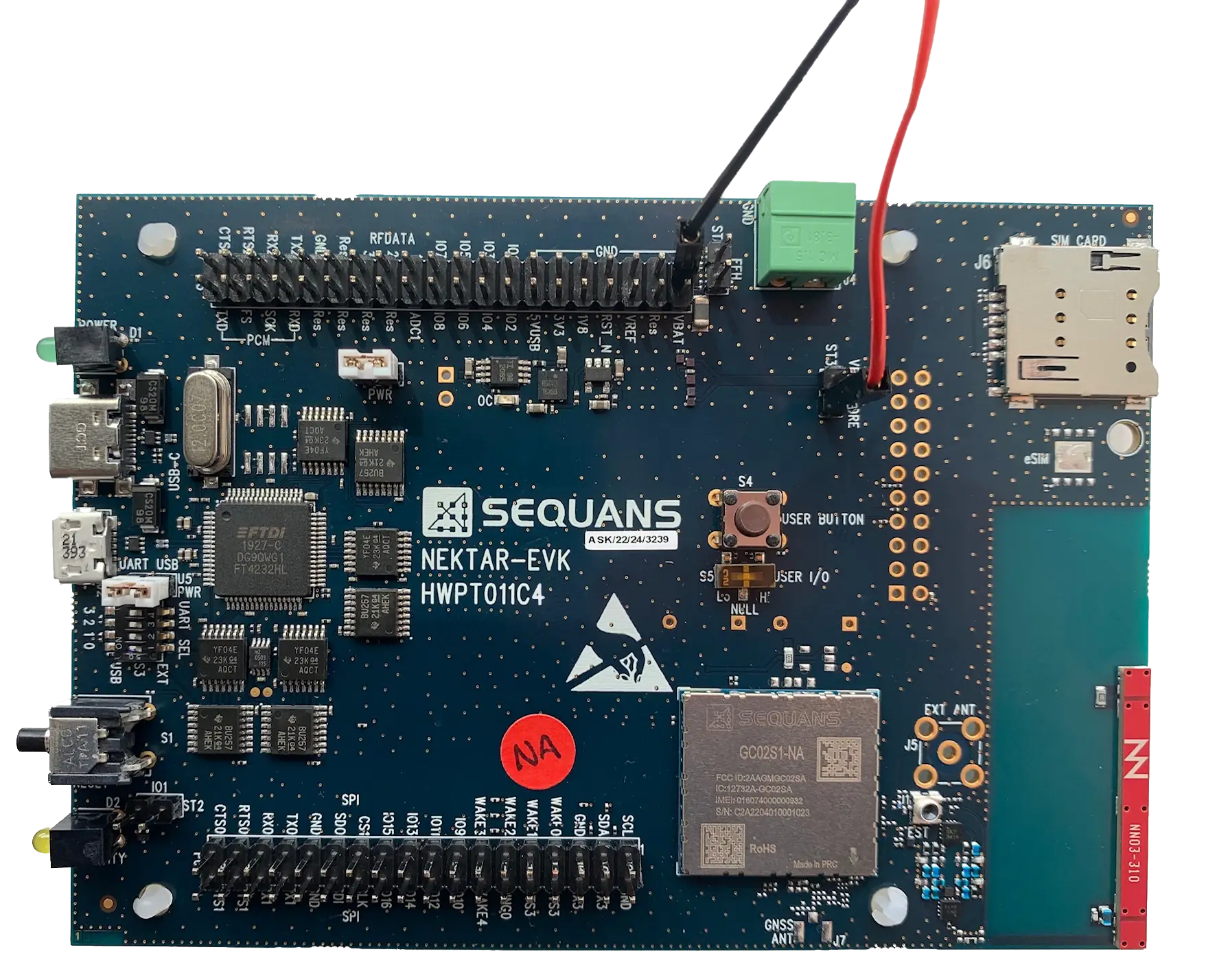
Figure 2 is a general overview of the GC02S1 EVK
board.
Figure 2. GC02S1 Board Overview
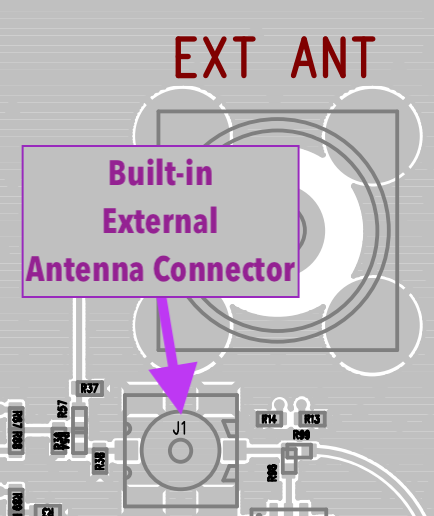
The J5 (EXT ANT) footprint next to the J1 connector accommodates a jack PCB-mount SMA connector to
connect the module to an external antenna, as detailed in this section.
Install the Drivers
The GC02S1 communicates with the host using two different
types of interface: UART and USB. On the EVK, the three UARTs are internally wired to a FTDIc FT4232HL
chip which multiplexes their signals on to a single USB bus. This bus presents three different
'endpoints' to the host, one for each UART. This UART over USB interface is available at the EVK's µUSB
connector.
The USB port of the GC02S1 is directly routed to the EVK's
USB-C connector. This native USB bus presents two types of endpoints: ACM, which replicates UART
behaviour, and ECM, which provides a transparent IP bridge to the network.
Both USB connectors will power the EVK if no other voltage source is connected.
Linux™ and MacOS™ automatically enumerate and recognise the UART, ACM and ECM endpoints
available on the µUSB and USB-C connectors of the EVK when the appropriate cable is plugged in. No user
action is required. On Linux™ and MacOS™, UART and ACM endpoints appear as additional
pseudo-terminals in the /dev/tty* list. The ECM endpoint is listed as another
/dev/tty entry on Linux™, while on MacOS™ it shows up as an additional
interface in the System Settings→Network dialogue box. For installation under Windows™, please follow the
instructions below.
Installing the UARTs over USB drivers (µUSB Interface) under Windows™
As explained above, the µUSB cable connects to GC02S1’s
UART-USB Bridge IC (FTDIc FT4232HL), which provides the serial COM USB endpoints used to talk to the
board.
Connect a microUSB cable between the PC and the EVK1.
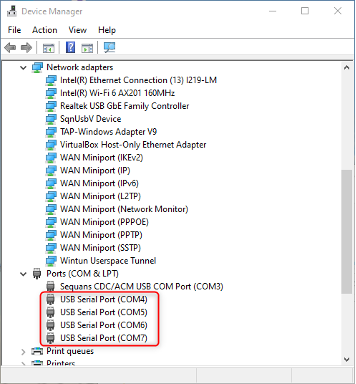
Under device manager you should see four COM ports enumerated.
Figure 3. Enumeration of UART over USB ports.
If the driver fails to auto-install, please download it manually from the ftdichip
website, under the name ‘UART/USB’ and install it. Once the driver installation
is done, unplug the EVK and reboot your PC. Sequans recommends the use of the FTDI’s
royalty-free Virtual Com Port (VCP).
Once this is done, every time you plug the µUSB cable, the devices should show up in the
device manager as shown in Figure 3.
The COM ports are allocated according to the following table:
Table 3. COM Ports Setting
Port Enum
Mapping
Use
Baud Rate
Data Bits
Flow Control
Parity
Stop Bit
COM n
UART 0
AT Commands
115200
8
Hardware
None
1
COM n+1
UART 1
AT Commands
921600
8
Hardware
None
1
COM n+2
UART 2
Console
115200
8
None
None
1
COM n+3
Unused
Sending AT Commands to the EVK requires the use of a terminal emulator program such as TeraTerm™ or
PuTTY™.
Connect the software to the UART 0, corresponding to the first COM port in the Windows™
enumeration.
Under Setup → Serial Port, choose the appropriate configuration
according to the table above.
To display the characters you type, you must either activate Local echo in the Setup → Terminal
configuration screen, or turn remote echo on by entering ATE1 then [ENTER].
Installing the USB/ACM and USB/ECM (USB-C Interface) driver under Windows™
First, download the Windows™ drivers from Sequans's cloud. Please ask your
nearest Sequans representative for the download URL. The file is named
sqn_setup_<build
version>-usb-drivers-pst.exe, where <build> varies
according to the most recent releases. For example: LR9.0.4.1-UE9.0.4.1a.
Open the Device manager.
Connect USB-C cable between the PC and the EVK (Native USB interface of the GC02S1).
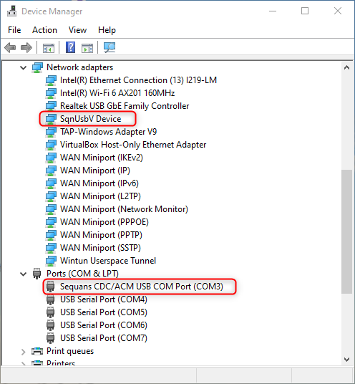
In the device manager you should see SqnUsbV Device under the Network adapters and
Sequans CDC/ACM USB COM Port under Ports (COM & LPT).
Figure 4. Windows™ port enumeration.
At this point, after attaching a terminal emulator software (Tera Term™,
PuTTY™, etc.) to COM3, you should be able to type AT commands and get
a meaningful response.
The second ACM endpoint needs manual installation. Proceed as follows:
Open Windows™
Device Manager.
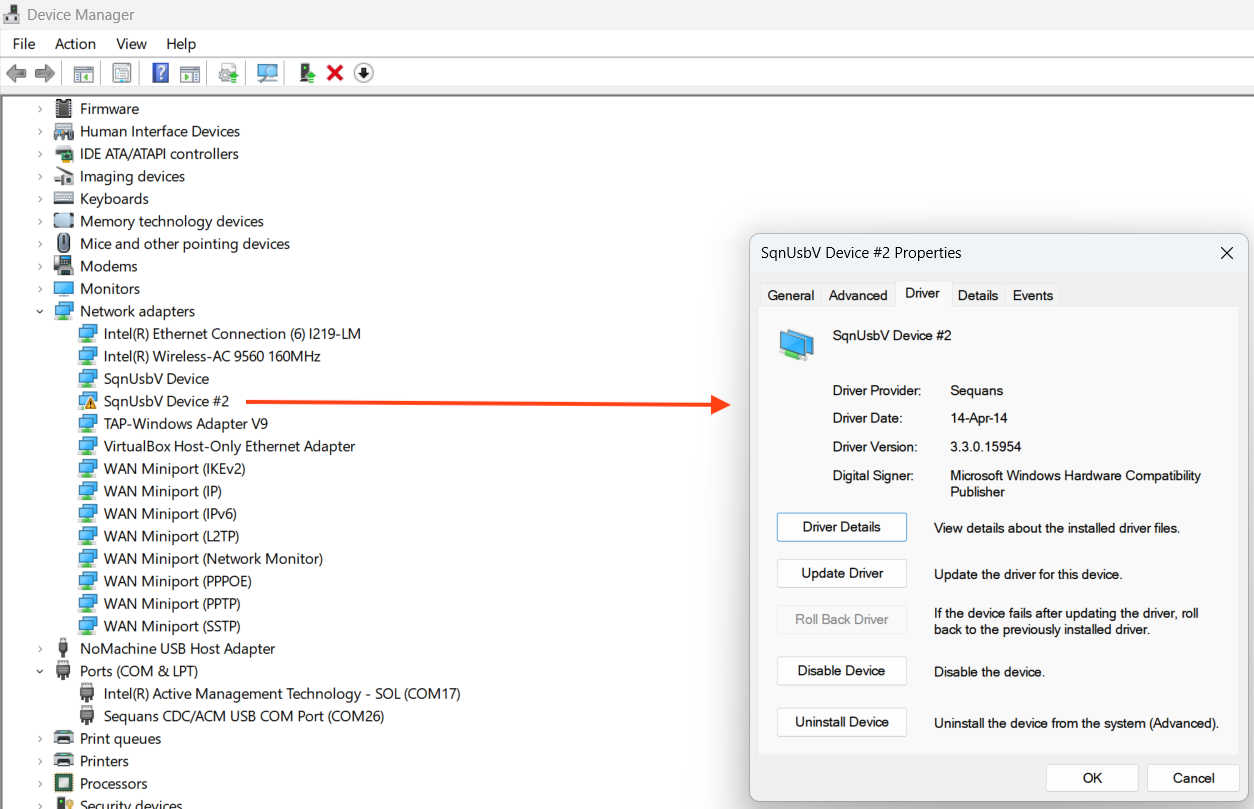
Look for SqnUsbV Device #2 under the Network adapters category. This entry
should be decorated with a warning sign because it is not properly configured.
Right click over SqnUsbV Device #2 and select Properties.
In the Properties dialogue, select the Driver tab.
Figure 5. ‘Driver’ tab of the Properties dialogue
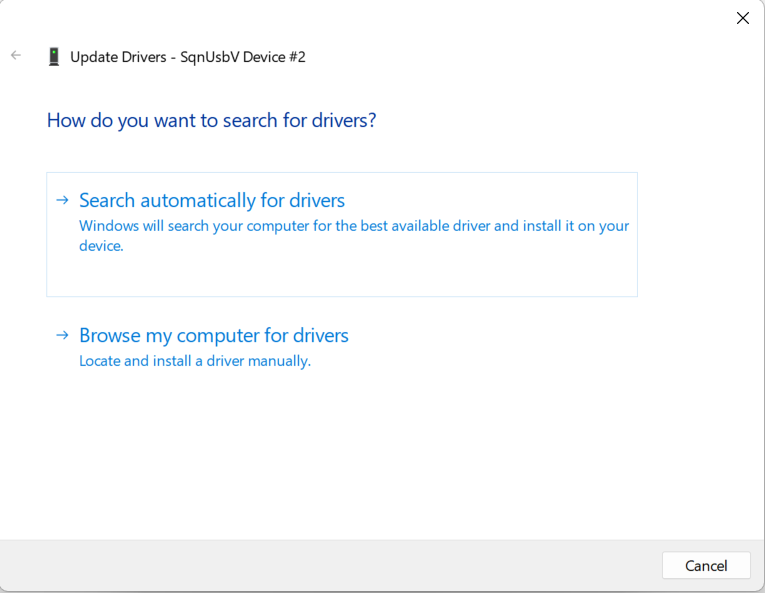
Now click on the Update Driver button on the left.
In the new dialogue box, select the bottom option Browse my computer for drivers.Figure 6. Now select ‘Browse my computer for drivers’
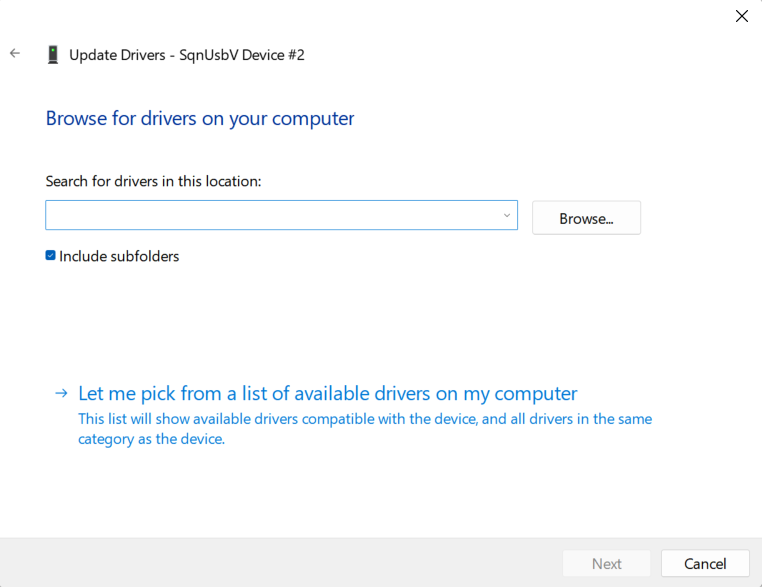
In the next dialogue box, select Let me pick from a list of available drivers on my
computer.Figure 7. Select the second option to manually install a driver
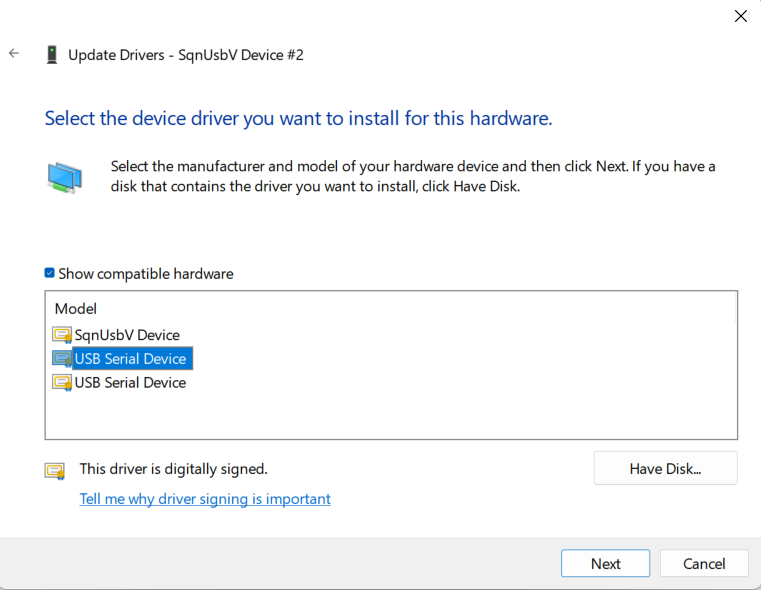
In the list of possible drivers that appears, select the upper USB Serial Device.
Figure 8. Pick the first ‘USB Serial Device’
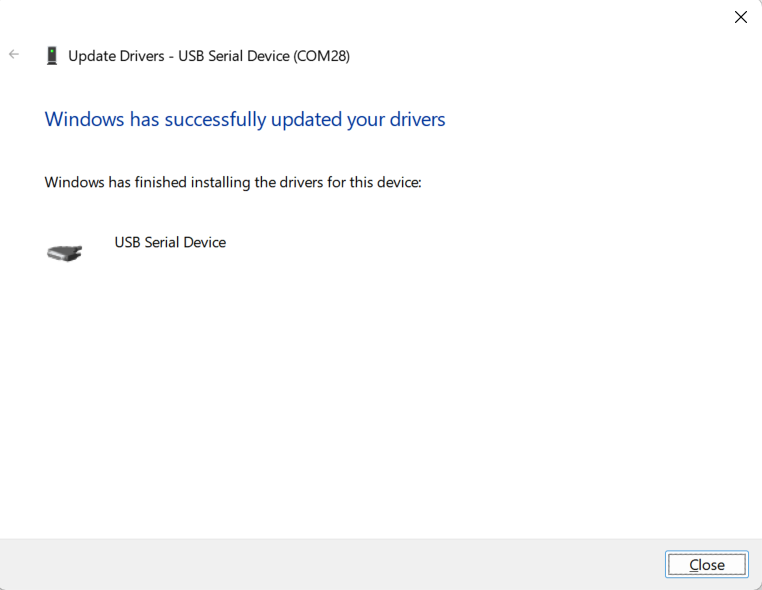
Windows™ should now report the driver update as successful.
Figure 9. The USB/ACM driver in now installed
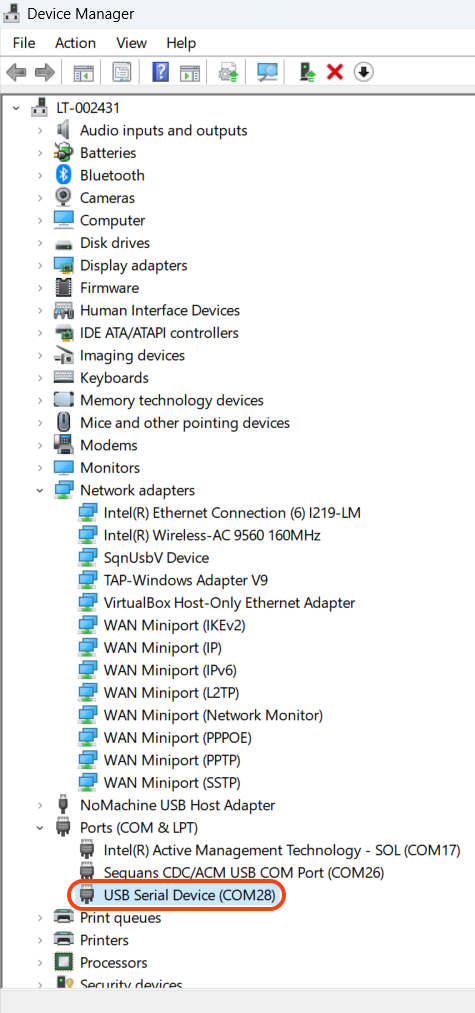
Finally check in the Device Manager window that a new COM driver has appeared in
the Ports(COM&LPT) category.
Figure 10. The New ACM Driver Appears here as COM port 28
You should be able to use the new COM port to send AT commands to the module using your
preferred terminal emulator software.
Connect to the Network
The GC02S1 EVK comes with a Soracom™ SIM card and $30 of free credit. First, activate
it as detailed in appendix A. Once the SIM is registered and
active, insert it into the µSIM card slot.
Note:
You may also use another SIM card
provided it gives access to LTE service.
Note:
This board only supports
SIM - UICC Class C interface with 1.8 V nominal voltage as described in ETSI TS102 221.
Connect Using the UARTs (µUSB)/AT Commands
Important:
Do not connect the EVK's USB-C connector when using this mode.
Note:
All actions described in this section assume you have access to a LTE network or simulator.
Connect the µUSB cable to the EVK.
Under Windows™, set up a TeraTerm session as described above and connect it on the
lowest COM port. Under Linux™ or MacOS™, use screen or any other
terminal emulator and open the lowest /dev/tty pseudo-device corresponding to
the EVK's UARTs.
Insert the SIM into the EVK's slot (if not done already).
Enable Echo using ATE1 command (for ease of use).
Enter the AT command AT+CFUN=4 and check the SIM card interface state with
AT+CPIN? The response can be either:
+CPIN: READY: SIM card is present and unlocked.
+CPIN: SIM PIN: The modem is waiting for the PIN code.
+CPIN: SIM PUK: The modem is waiting for the PUK code.
ERROR: The SIM is not inserted or not detected.
Control the reception of an unsolicited result code by sending AT+CEREG=2. This
command turns on the notification of any network registration status change.
Power on the modem with AT+CFUN=1. The modem responds OK
followed by +CEREG=<stat>.
Value
Meaning
Comment
0
The modem is not registered and is not currently scanning for
a network to register on.
Possible cause: SIM card error or registration ongoing.
1
The modem is registered on the network. The kit is
connected.
2
The modem is not yet registered, but is actively trying to
attach or is searching for an operator to register at.
Possible causes: No network available, RSS too low, PLMN
available but registration rejected.
3
Registration denied.
Possible causes: Illegal mobile equipment IMSI unknown at
HLR, PLMN not allowed, location area not allowed, roaming not allowed in
this location area, network failure, network congestion.
4
Unknown.
Transient value.
5
Modem registered in roaming mode.
80
Transient connection loss.
The modem will reconnect at the earliest opportunity.
Wait for the modem to register and report +CEREG: 1 (registered, home network)
or 5 (registered, roaming).
Figure 11. AT Screen during registration.
Check the IP address and the active PDP context using AT+CGPADDR command.
A quick connectivity check could be done using AT+PING command.
Connect Using the ECM Endpoint (USB-C)
Under MacOS™, the ECM interface appears as an additional interface in the Network tab of
the System Settings. Under Linux™ use ifconfig and route
to redirect IP traffic to the ECM interface which should appear as an enXX device (this
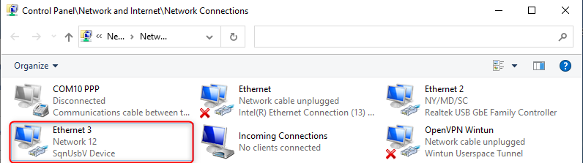
is also possible under MacOS™). On Windows™, open Control Panel\Network and
Internet\Network Connections and check for the presence of the Ethernet adapter with
SqnUsbV Device. Then follow these steps:
Connect the PC to the EVK using a USB-C cable. On Windows™, as long as the modem is
unregistered or has not be assigned an IP address, the SqnUsbV device status remains
‘Network cable unplugged’. On Linux™ and MacOS™, the corresponding interface is
inactive (down).
Open a terminal emulator and connect it to the UART device/tty corresponding to an ACM endpoint
(see Install the Drivers).
Once the modem has registered and obtained a valid IP address, the device/interface becomes
active (up) and the ECM endpoint is available for data exchange. To test the connection,
deactivate all the other IP interfaces (Ethernet, WiFi…) and use, e.g. ping,
from the host.
Figure 12. The SqnUsbV device is now active.
Hardware Description
Overview
The Top and Bottom layer views of the GC02S1 EVK are represented in Figure 13 and Figure 14.
Figure 13. Top Layer
Figure 14. Bottom Layer
Power Supplies
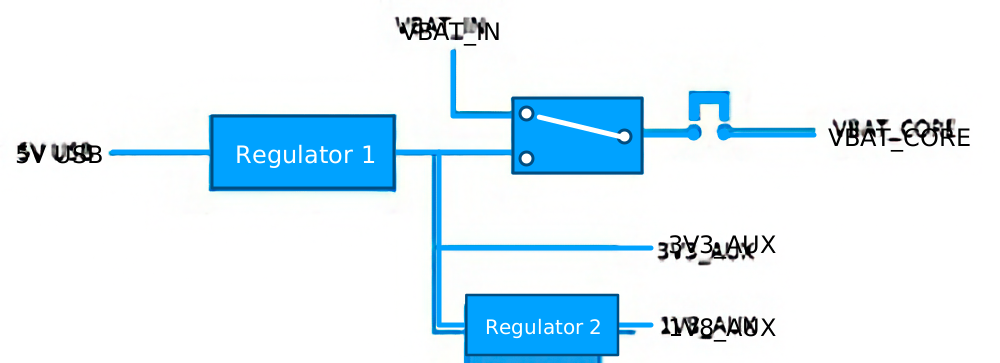
The GC02S1 EVK has two power domains:
One for the entire auxiliary and debug circuitry (AUX).
One for the LTE modem (CORE).
Figure 15. Power Supplies
The auxiliary power domain can only be powered via USB.
The LTE modem can be powered in three different ways: USB, VBAT_IN, VBAT_CORE.
USB: When USB (µUSB or USB-C) is connected and no other voltage is applied to the board, a
regulator generates 3V3_AUX which is used to power the LTE modem
VBAT_CORE: The module VBAT_CORE is available on the SiP Power Supply jumper ST3. By
disconnecting jumper ST3, the LTE module can be powered directly using an external supply. This
setup is recommended when measuring the module absolute lowest power consumption.
VBAT_IN: VBAT_IN is available on J4 connector and on the GC02S1 EVK’s expansion connector (pin 2 on connector
P3). VBAT_IN must respect the voltage range of the GC02S1 (3.3 V ≤ VBAT_IN ≤ 5.5 V). When
VBAT_IN is above 3.1 V, the module power VBAT_CORE is automatically
switched from 3V3_AUX to VBAT_IN.
Note:
When powering the LTE module via
VBAT_IN, there is some extra leakage on the power supply circuitry itself.
It is therefore not
recommended to use this power supply when measuring the LTE module’s floor current.
The GC02S1 EVK board has one reset push button (S1). It resets the module when pressed.
Note:
If the EVK is connected using the USB-C connector (direct connection to the
GC02S1’s USB subsystem), the USB endpoint is
disconnected and reconnected, resulting in a loss of connection. The +SYSSTART URC,
however, is buffered and transmitted as soon as the USB link is up again.
Micro-USB Port and UART Switches
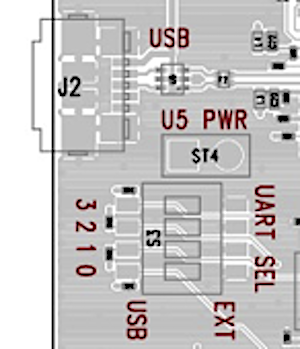
The GC02S1 EVK provides access to all the LTE modem UARTs via the micro-USB connector (J2).
Each individual UART can be directed either to the micro-USB hub or to the EVK’s expansion connector
using the S3 switch group. When switch n is in "USB" position, UARTn appears in the
micro-USB hub enumeration (the default configuration is all UARTs redirected to USB). When
switchn is set to EXT, the corresponding UART is directed to the expansion port.
Figure 16. UART Switches
SIM Card
Note:
This board only supports SIM - UICC Class C interface with 1.8 V nominal voltage as described in
ETSI TS102 221.
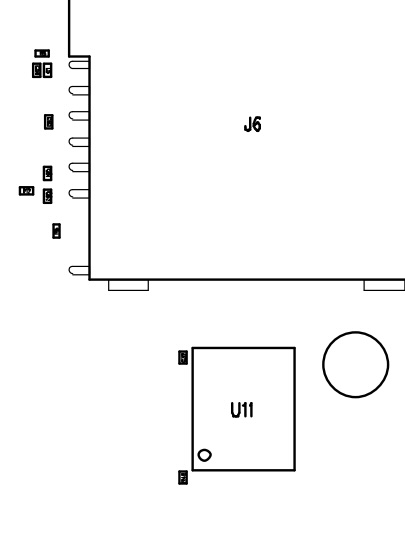
The GC02S1 EVK supports either a MFF2 SIM (U11) or a SIM inserted into the slot (J6).
The SIM slot is a 3FF micro SIM holder with push-eject function. The slot is connected to
GC02S1’s SIM0 interface. This is the default
SIM interface used by the GC02S1.
In addition, a MFF2 SIM can be soldered on the U11 footprint, connected to the SIM1 interface
on the EVK board. If this interface is used, please check the
AT Commands Reference Manual to configure SIM1 as the default SIM interface.
See the figure below for proper placement of the eSIM.
Figure 17. eSIM Placement
LEDs
There are two LEDs on the GC02S1 EVK board:
The power LED (D1), green: turns on whenever there is USB power
The activity LED (D2), amber: follows the network activity if the ST2 jumper is fitted and the
ACTIVITY LED function is enabled on the module (using the AT command AT+SQNLED,
please refer to
AT Commands Reference Manual for details)
User Button and Switch
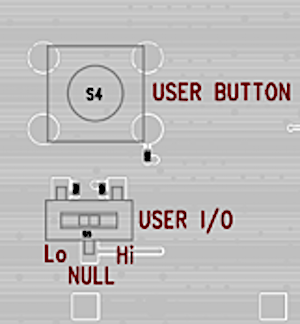
The EVK board is equipped with a User Button (S4) and a User Switch (S5).
Figure 18. User Button and Switch
Pushing the User Button (S4) grounds WAKE0. The button is shunted by a fixed 100 kΩ
pull-up.
The User Switch (S5) connects GPIO11 either to 1V8 (Hi) or GND (Lo) through a 100 kΩ
resistor. The median position (NULL) isolates the signal from both sources.
GC02S1 EVK Expansion Connectors
The expansion connectors of the EVK board are intended to:
Allow hardware designers to connect external peripherals for prototyping
Piggybacking the daughter board, called NEKTARINE. If you want to design your own daughter
board, please check Section Daughter Board Design Guidelines
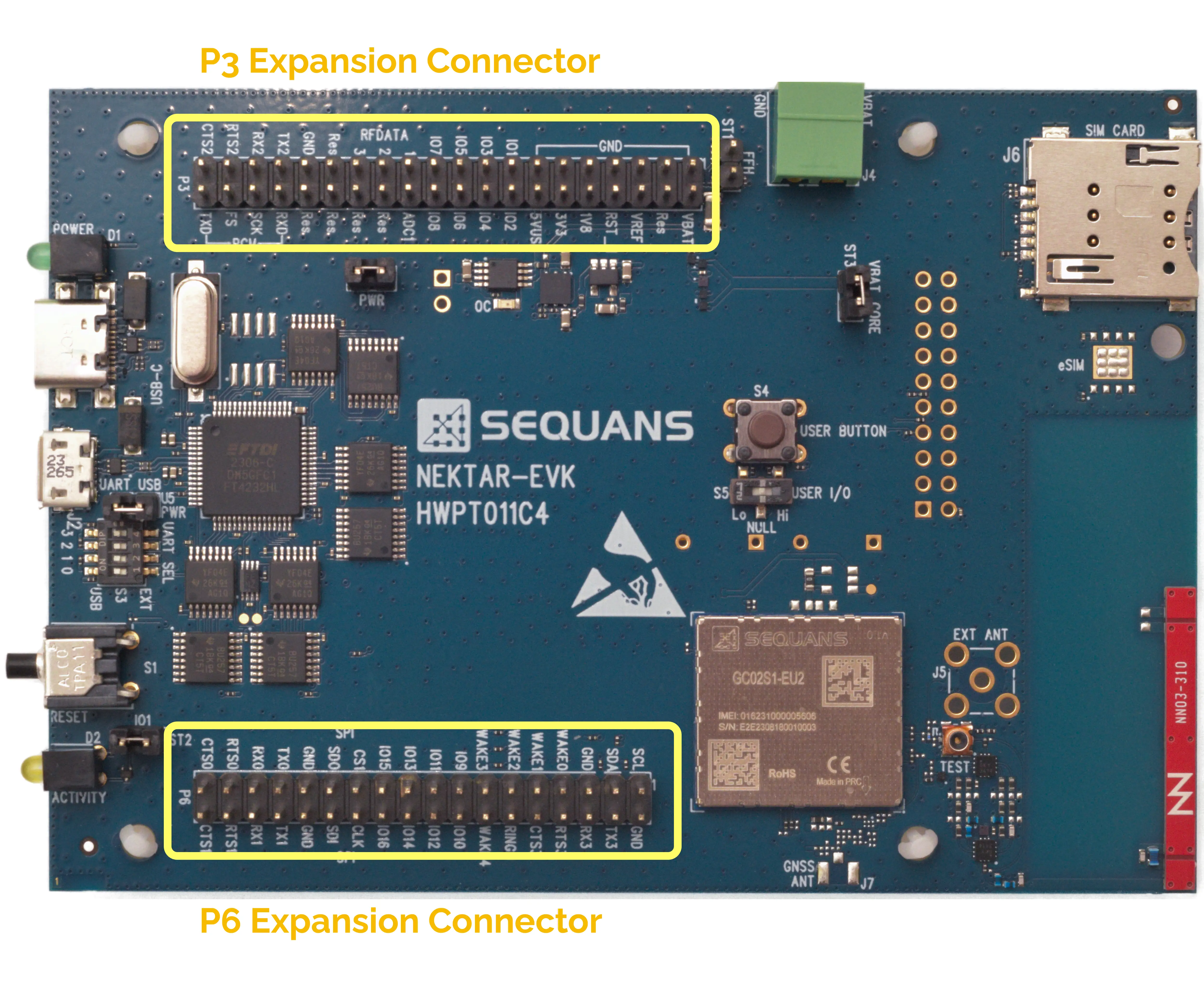
Two expansion connectors are available on the GC02S1 EVK board. They provide access to all modem
interfaces.
Figure 19. Expansion Connectors Location on the GC02S1 EVK board
Note:
The logic signals of the expansion connectors use 1.8 V voltage. Some signals tolerate higher
voltages. Please refer to the module data sheet for more information.
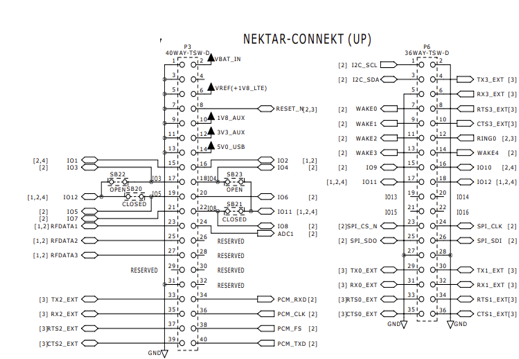
Figure 20. P3 and P6 Connectors Schematics
Table 4 provides the correspondence between
the EVK signals and the module signals.
Table 4. Expansion Connectors and GC02S1 Signals
P3 Connector Signals to GC02S1 Module
P6 Connector Signals to GC02S1 Module
P3 Pad
P3 Marking
Direction
GC02S1 Signal
P6 Pad
P6 Marking
Direction
GC02S1 Signal
1
GND
-
-
1
I2C_SCL
GPIO24/I2C_SCL
2
VBAT_IN
I
VBAT
2
GND
-
-
3
GND
-
-
3
I2C_SDA
GPIO23/I2C_SDA
4
-
-
-
4
TX3
I
GPIO19/TXD3
5
GND
-
-
5
GND
-
-
6
VREF (1V8 LTE)
O
1V8
6
RX3
O
GPIO20/RXD3
7
GND
-
-
7
WAKE0
*
WAKE0
8
RESETn
I
RESETN
8
RTS3
I
GPIO22/RTS3
9
GND
-
-
9
WAKE1
*
WAKE1
10
1V8_AUX
O
-
10
CTS3
O
GPIO21/CTS3
11
GND
-
-
11
WAKE2
*
WAKE2
12
3V3_AUX
O
-
12
RING0
O
RING0
13
GND
-
-
13
WAKE3
*
WAKE3
14
5V_USB
O
-
14
WAKE4
*
WAKE4
15
IO1
IO
GPIO1/STATUS_LED
15
IO9
IO
32KHZ_CLK_OUT
16
IO2
IO
GPIO2/PS_STATUS
16
IO10
IO
GPIO25
17
IO3
IO
GPIO29
17
IO11
IO
GPIO26
18
IO4
IO
GPIO30
18
IO12
IO
GPIO27
19
IO5
IO
GPIO28
19
IO13
IO
-
20
IO6
IO
GPIO11/SPI_CSN2
20
IO14
IO
-
21
IO7
IO
GPIO31/PWM0/PULSE0/19M2_OUT
21
IO15
IO
-
22
IO8
IO
GPIO32/PWM1/PULSE1
22
IO16
IO
-
23
RFDATA1
IO
GPIO33/TX_IND
23
SPI_CS1
IO
GPIO10/SPI_CSN1
24
ADC1
I
ADC
24
SPI_CLK
IO
GPIO9/SPI_CLK
25
RFDATA2
IO
GPIO34/ANT_CTRL0
25
SPI_SDO
IO
GPIO8/SPI_SDO
26
Reserved
-
-
26
SPI_SDI
IO
GPIO7/SPI_SDI
27
RFDATA3
IO
GPIO35/ANT_CTRL1
27
GND
-
-
28
Reserved
-
-
28
GND
-
-
29
Reserved
-
-
29
TX0
I
GPIO12/TXD0
30
Reserved
-
-
30
TX1
I
TX1
31
GND
-
-
31
RX0
O
GPIO13/RXD0
32
Reserved
-
-
32
RX1
O
RX1
33
TX2
I
GPIO15/TXD2
33
RTS0
I
RTS0
34
PCM_RXD
I
GPIO3/PCM_RXD
34
RTS1
I
RTS1
35
RX2
O
GPIO16/RXD2
35
CTS0
O
GPIO14/CTS0
36
PCM_CLK
I
GPIO4/PCM_CLK
36
CTS1
O
CTS1
37
RTS2
I
GPIO18/RTS2/DSR0
38
PCM_FS
I
GPIO5/PCM_FS
39
CTS2
O
GPIO17/CTS2/DCD0
40
PCM_TXD
O
GPIO6/PCM_TXD
LTE Antenna and RF Connectors
The GC02S1 EVK board includes an integrated antenna with a matching circuit. The matching circuit’s
topology is driven by two of the module GPIOs according to the operating frequency.
The integrated antenna data sheet can be found here.
In addition, the GC02S1 EVK board features an RF connector (J1) to tie the board to an external antenna
or test equipment. This connector is compatible with Murata®’s MXHS83QE3000 cable.
Note:
When an external antenna is used, the internal antenna is disconnected.
Figure 21. Connection of an External Antenna
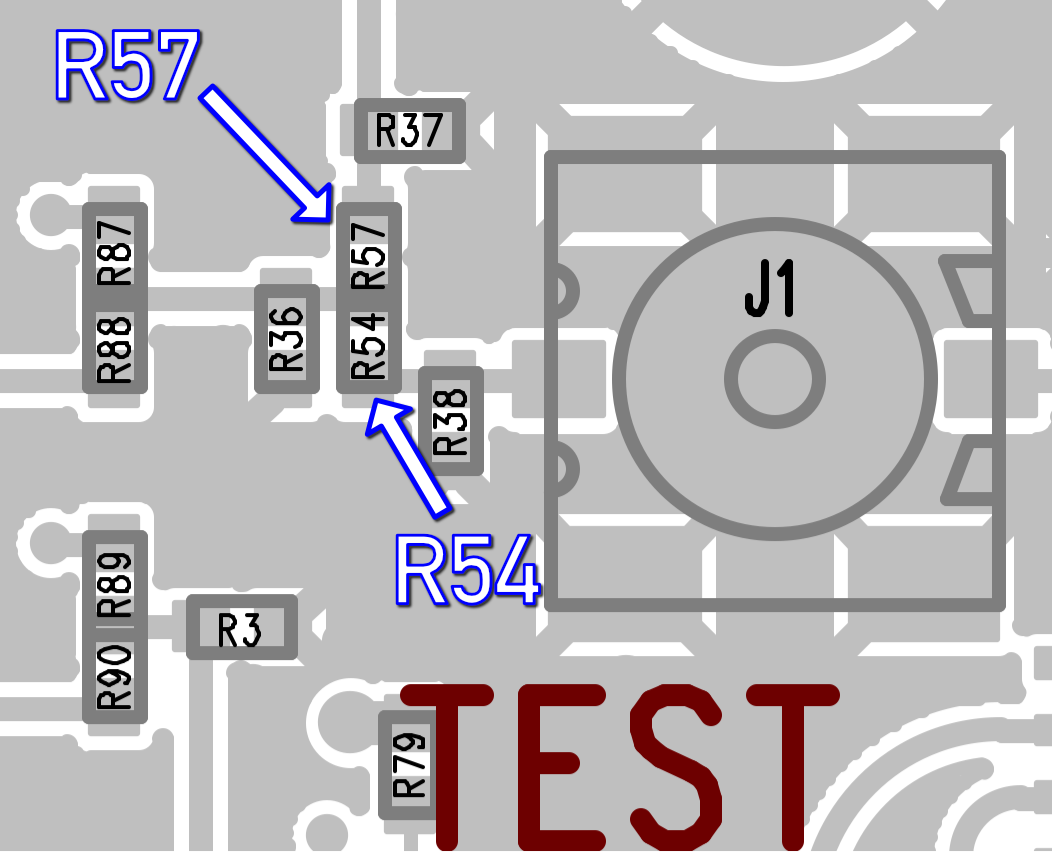
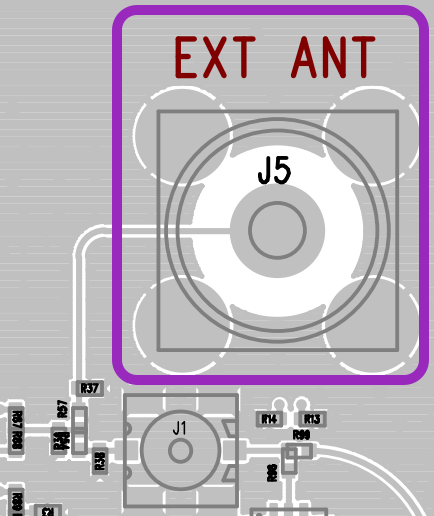
Alternatively, a SMA connector can be soldered at J5, as shown in the picture below. This requires also
soldering a shunt at R57 and removing R54, located as shown in Figure 22Figure 22.
Figure 22. R57 and R54 Location on Board
Figure 23. Alternate External Antenna Connection
Default Positions of Jumpers and Switches
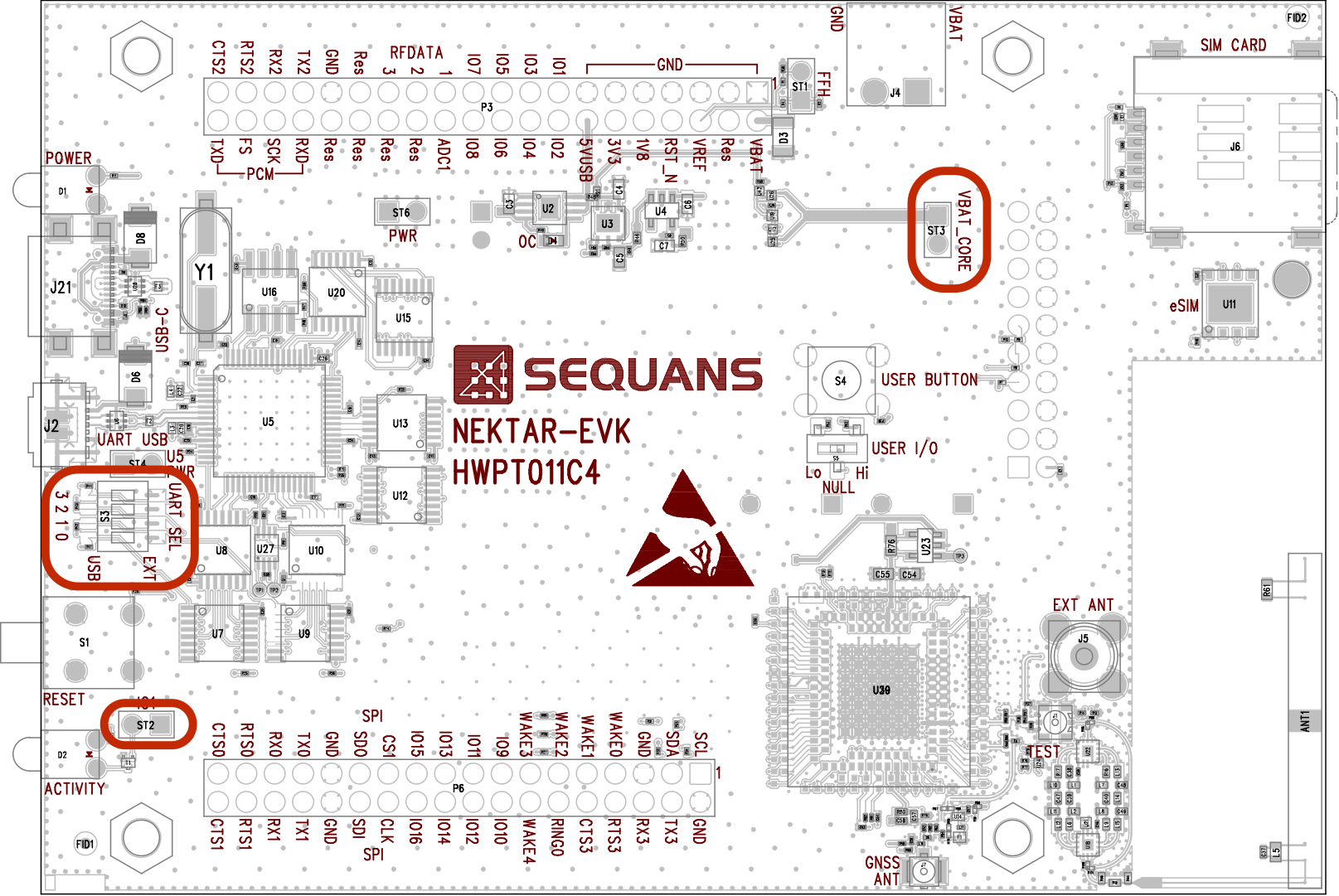
Default factory position of all the board’s jumpers and switches are summarised below:
ST2 and ST3 jumpers are fitted
S3 is set in ‘UART’ position in order to redirect the UARTs to the micro-USB port
Figure 24. Default Jumpers’ and Switches’ Positions
Advanced Functions
How to Connect an External Power Supply
Power via VBAT_IN on J4 Connector
The external power supply can be tied to the Power Input connector J4 (VBAT_IN). When the supply voltage
at VBAT_IN rises above 1.6 V, the module power VBAT_CORE switches from 3V3_AUX to VBAT_IN. This is shown
in Figure 25.
Note:
J4 is a 2-pin, 1-row, right angle PCB terminal block header. To connect to J4, a 3.81 mm pitch,
2-pin PCB terminal block can be used.
An external power supply can be connected to the Power Input connector J4, VBAT_IN. J4 is a two-way,
one-row, right angle PCB terminal block header. To connect to J4, a 3.81 mm pitch, two-way PCB terminal
block can be used. When the supply voltage at VBAT_IN rises above 1.6 V, the module power VBAT_CORE is
automatically switched from the 3V3_AUX to the VBAT_IN supply.
Figure 25. External Power Supply Connection at J4
VBAT_CORE power selection at the ST3 Connector
The external power supply can be connected to ST3 VBAT_CORE for the module VBAT 1 to supply and measure
power as shown in Figure 26.
Note:
The
DC output of the power supply must be connected to the ST3 bottom pin and the ground to one of the
pins marked as GND in the P3 connector.
An external power supply can be connected to the ST3 VBATT_CORE for the module VBAT1 to supply and
measure power.
Figure 26. ST3 View to Connect an External Power Supply
How to Connect an Ammeter
Strap ST3 can also be used to connect an ammeter. Current must be measured from this point, otherwise
there is a risk of taking in additional current from the host board.
If a current measuring power supply is used, power should be connected as shown in Figure 26.
How to Perform a Remote Reset
When using the GC02S1 EVK in a remote setup, it may come in handy to reset the board from the host PC. A
remote reset can be performed using one of the UART1 ports available on the USB connector J2.
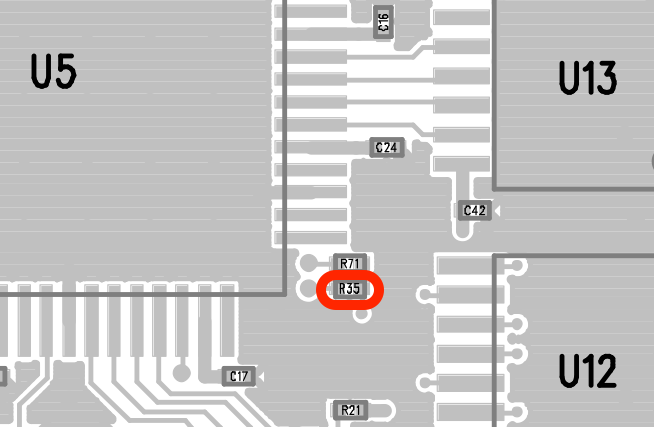
To enable the remote reset functionality, install a 4.7 kΩ resistor at R35.
Figure 27. R35 Location on Layout
The remote reset consists in toggling the UART1 DTR function from high to low, then back to high. The
TeraTerm™ script below does this:
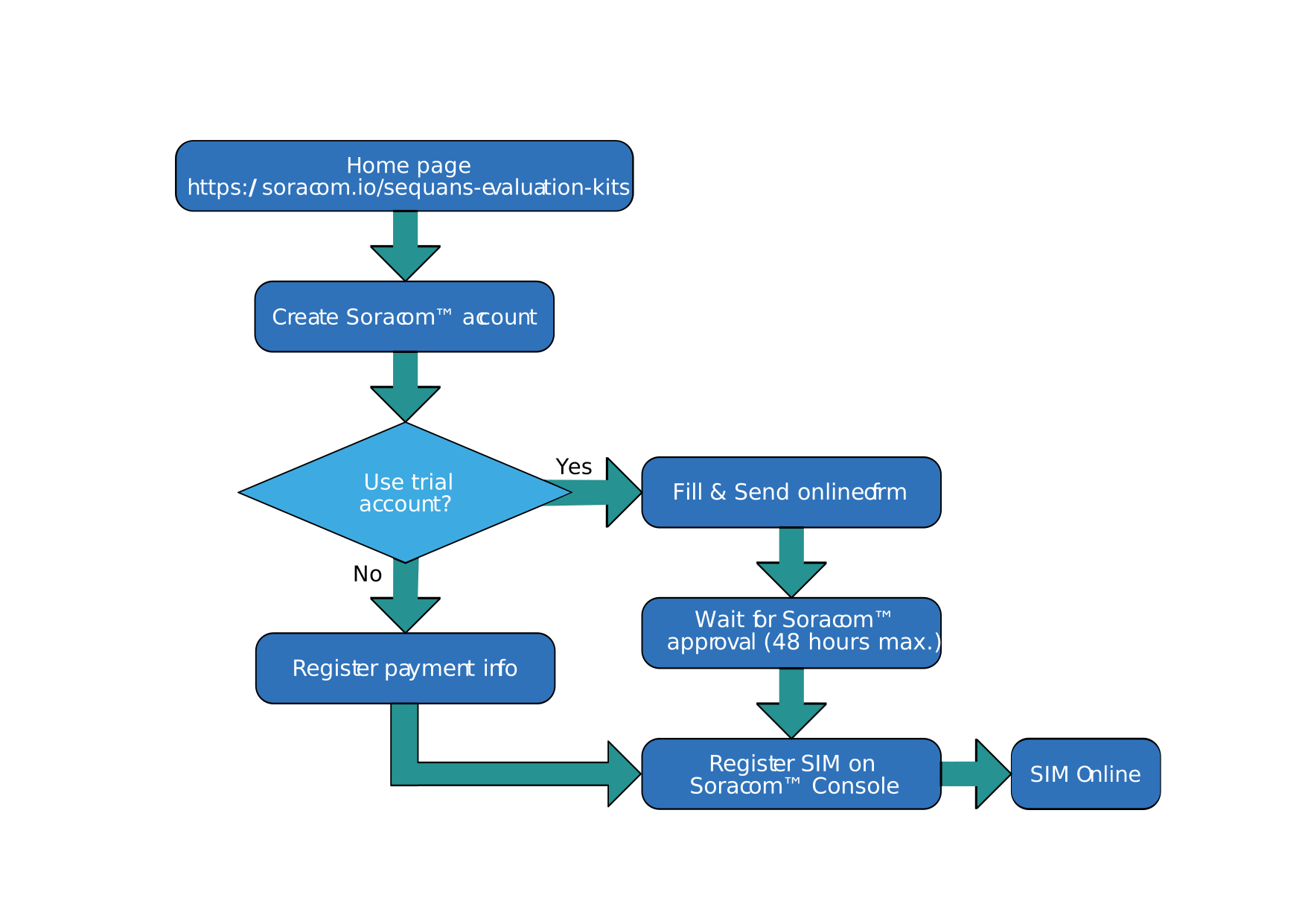
Click on the ‘Sign Up’ option on the top right corner.
Figure 32. Soracom™’s home page.
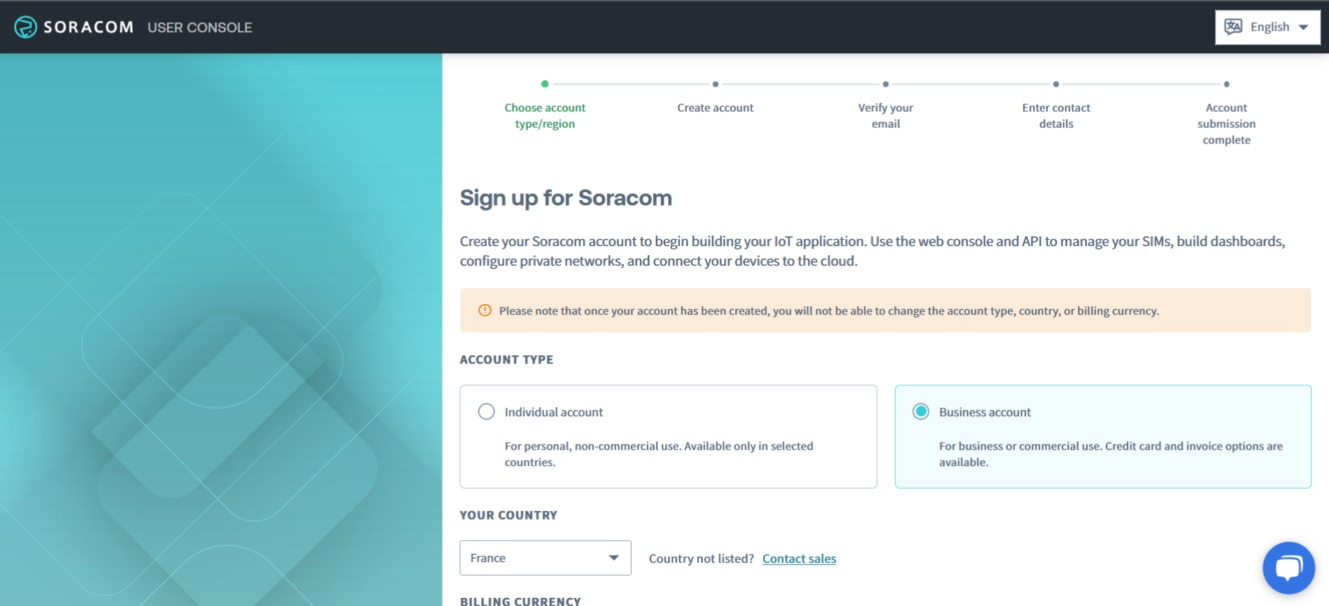
Select ‘Business Account’ and your country. If your country is not listed, please contact
Soracom™ by clicking on the ‘Contact sales’ button. Finally, select your billing currency and
click on ‘Continue’.
Figure 33. First Registration Step.
Enter a valid mail address and a password to create your account. Tick the box to approve terms
and conditions, and then click on ‘Continue’.
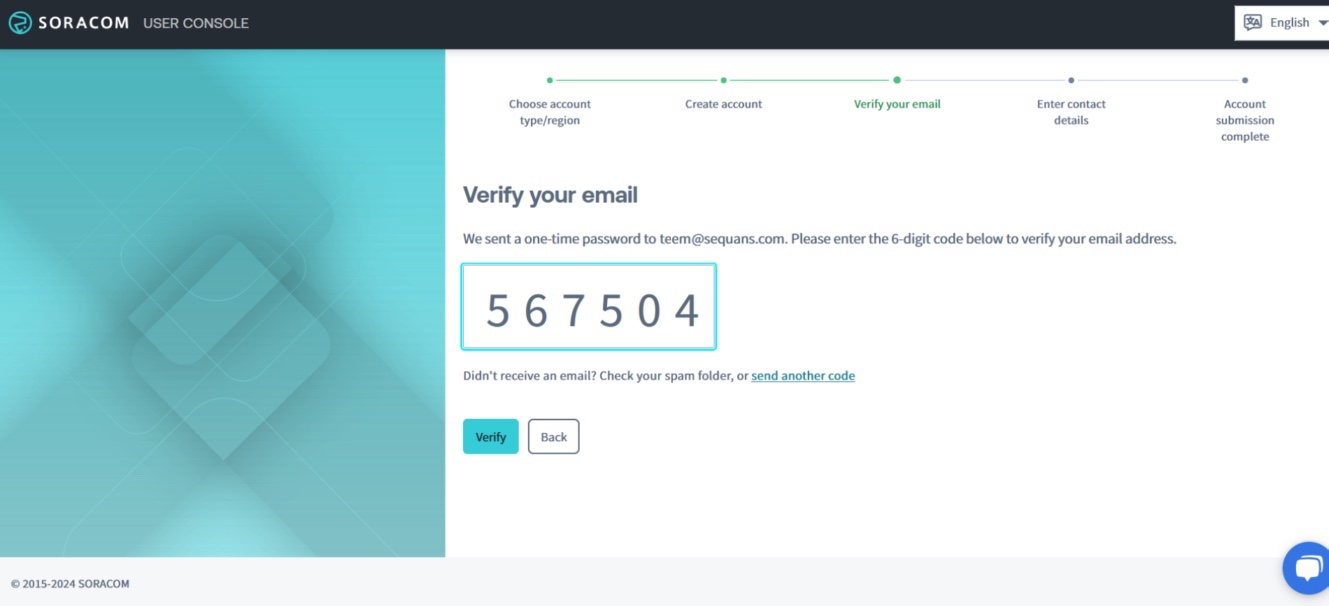
Check your mail for the confirmation code. Enter it in the field and click 'Verify’.
Figure 34. Entering the Confirmation Code Sent by Mail.
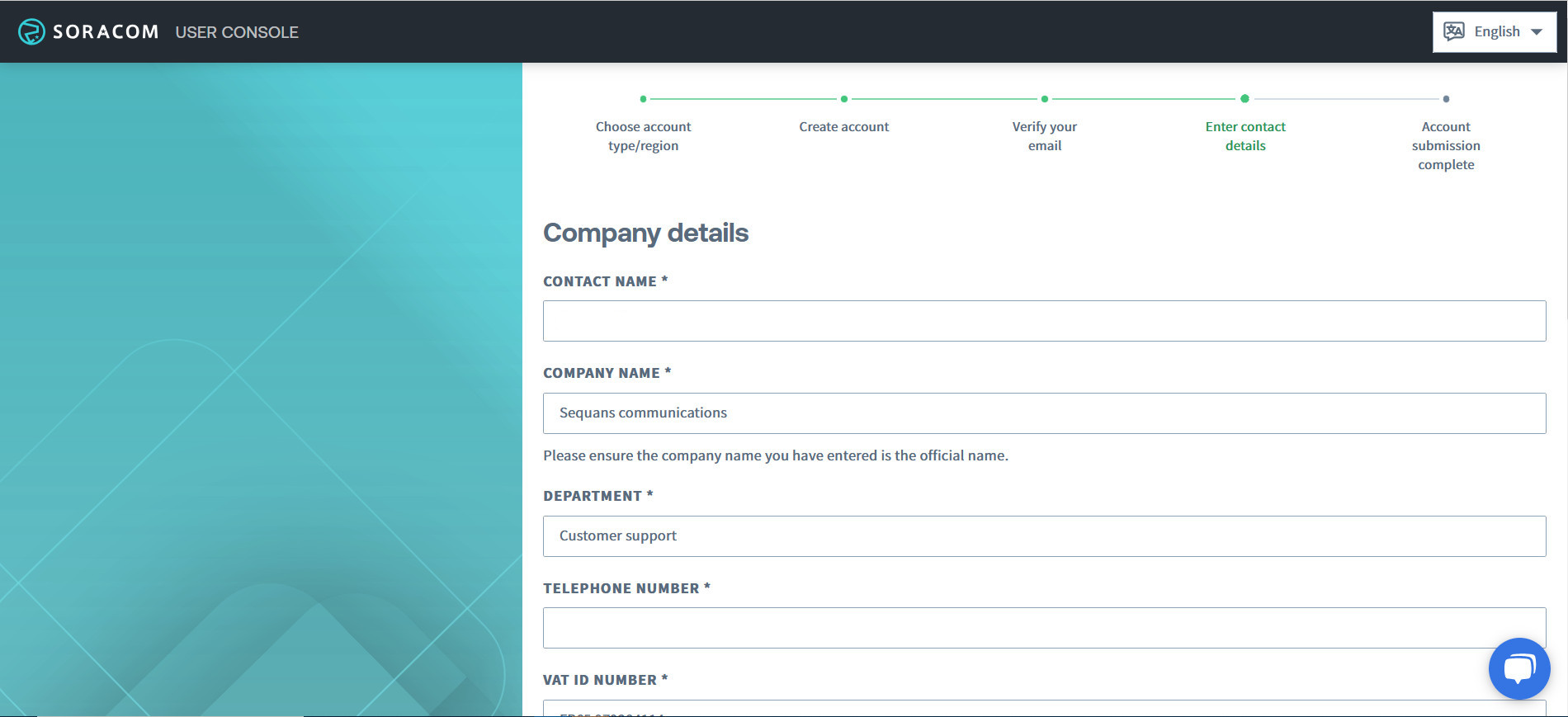
Enter your address, phone and VAT number, then click on ‘Create Account’.
Figure 35. Entering the Company Details.
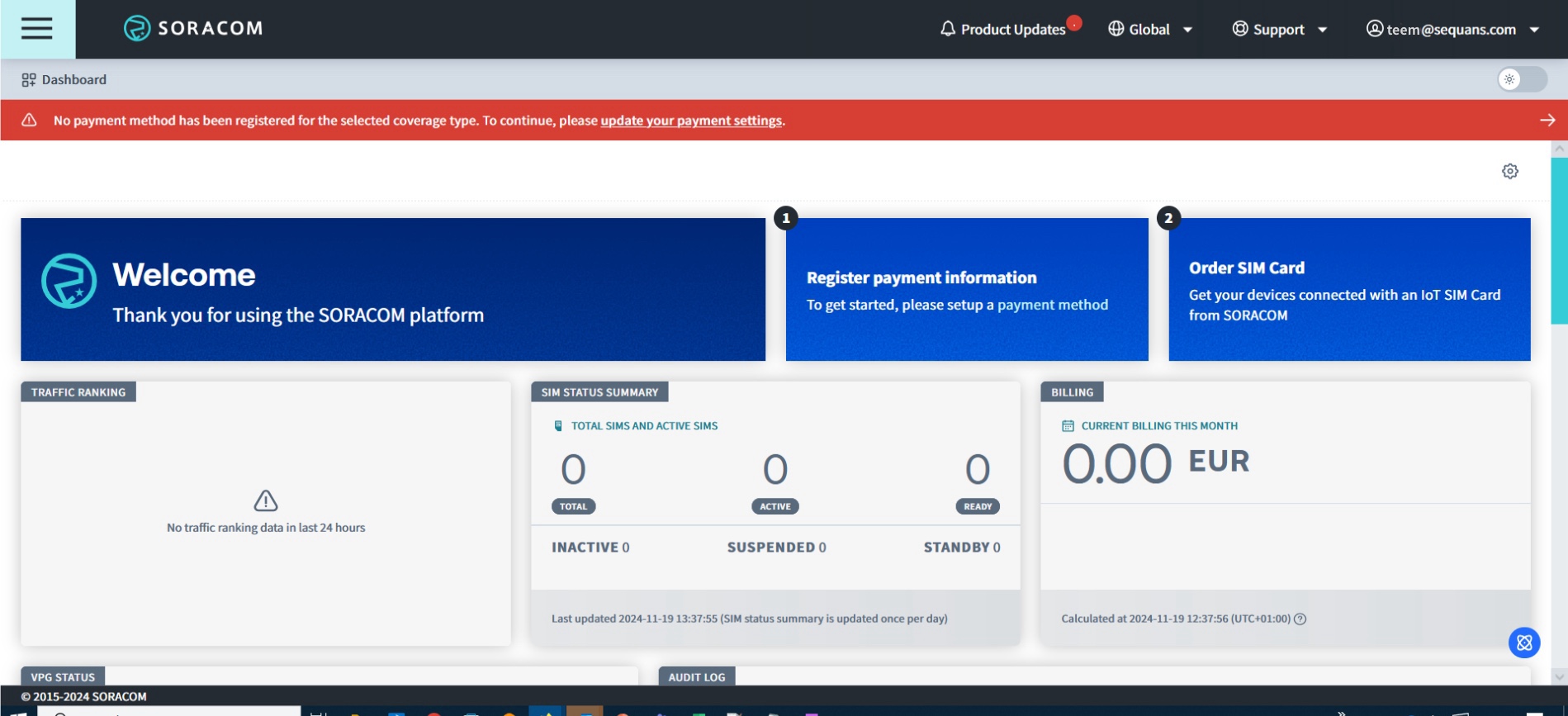
Once the account is created, you are redirected to the Console page.
Figure 36. The Console page.
All accounts come with a free initial credit of $30.
Activating a Permanent Account with a Credit Card
Continue the registration process as detailed below:
The payment method has to be updated first (red ribbon atop the screen).
Enter a valid credit card number when asked.
Activating a Trial Account
If you don't want to communicate any credit card number, you can choose to create a ‘trial’ account:
Enter your name, email, company, country and the ICCID of the SIM your received with the EVK in
the appropriate form located on the main page.
Validate the information. Soracom™ will now process your request within 48 business hours.
Once the request is approved, you receive a confirmation mail at the address you entered with a
link to register the SIM.
Registering the SIM card
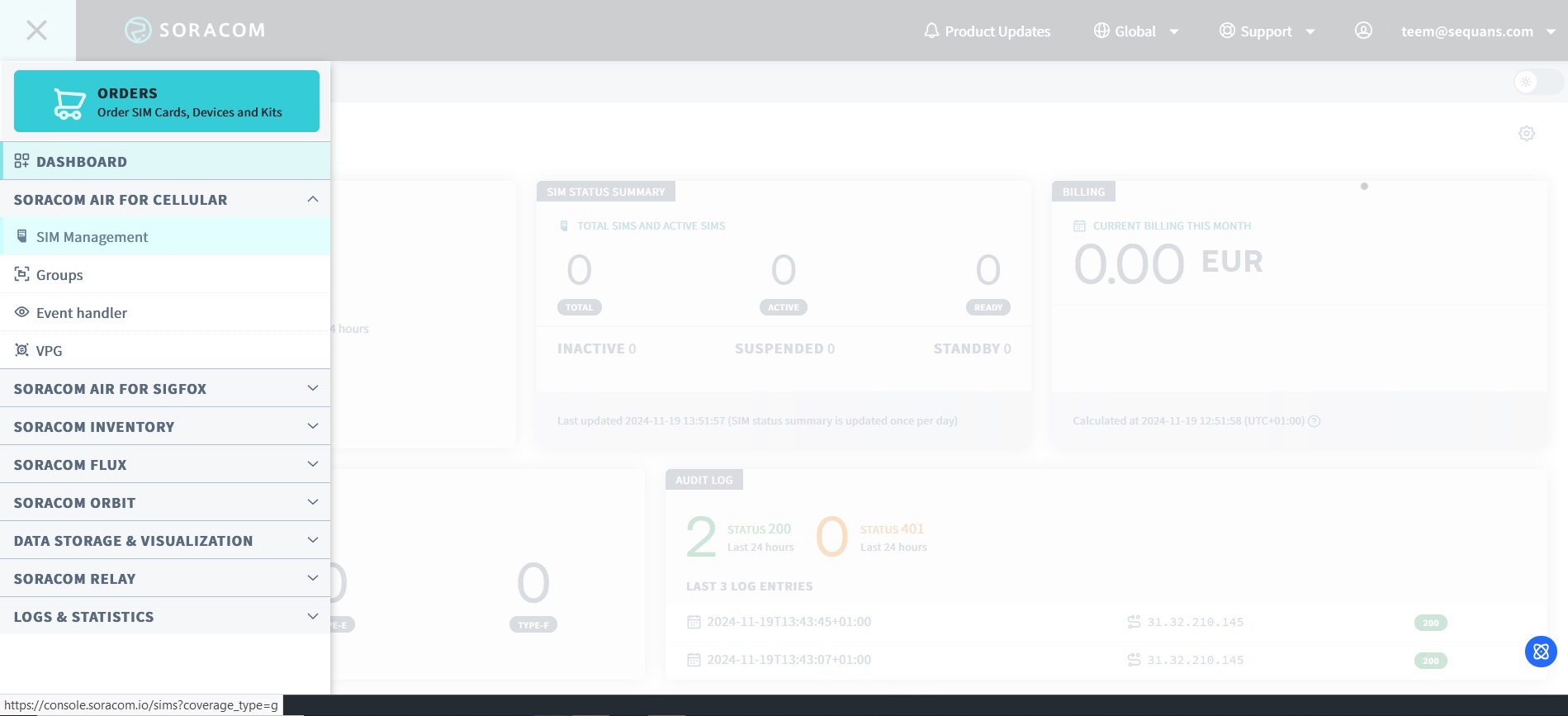
To register the SIM card with either a permanent or a trial account, go to the main page and
click on ≡ → ‘SIM Management’.
Figure 37. Open the menu and choose SIM Management.
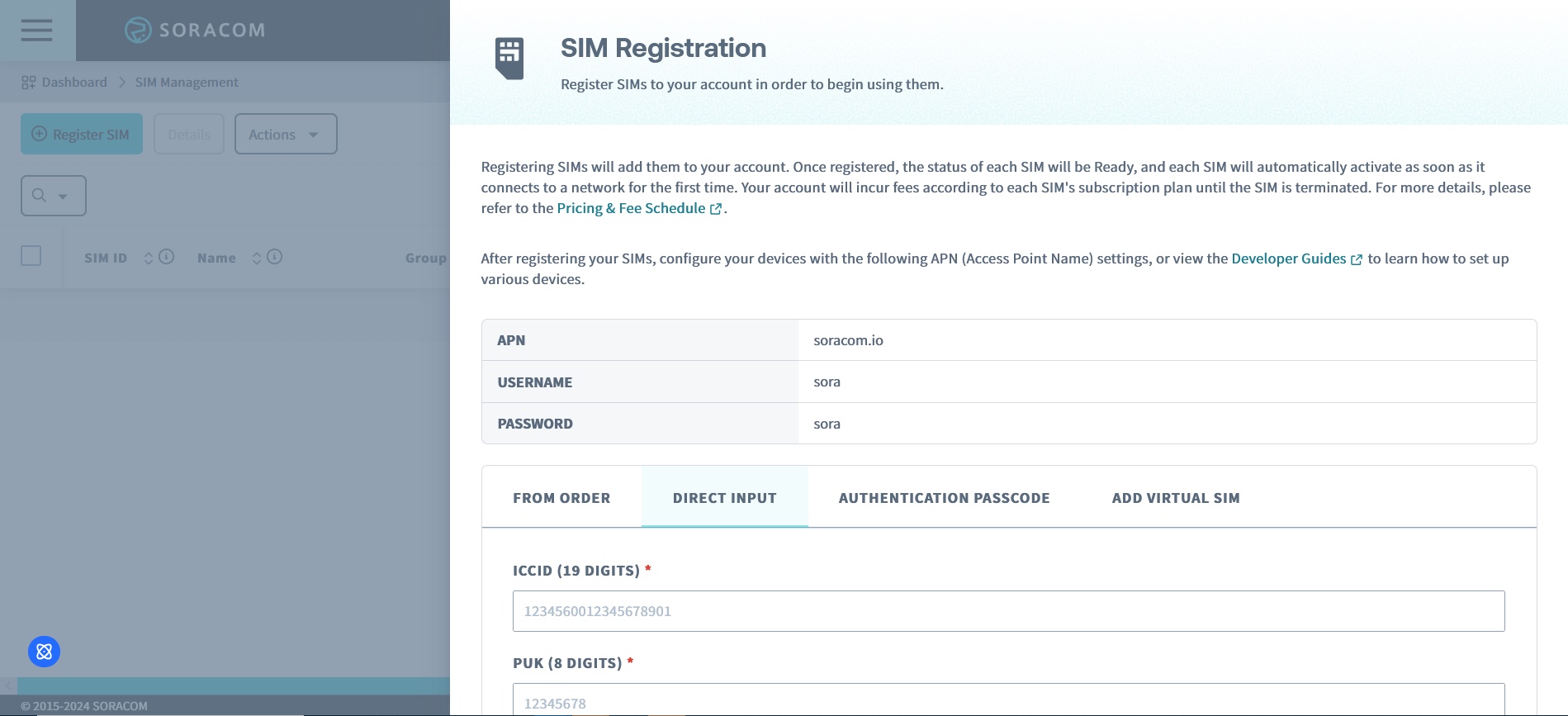
Click on ‘Register SIM’, then ’Direct Input‘.
Figure 38. Register SIM" / "Direct Input
Enter the ICCID and PUK numbers. Registration is complete, data plan is ‘Plan01s’.
Attention:
Extending the default subscription plan attached to the Soracom™ SIM card with Soracom™’s ‘Subscription containers’ feature is
not yet supported.
TIS/TRP Figures
Important:
Measurements reliability depends on test set-up calibration and accuracy.
The following figures are informational only.
Table 6. TIS/TRP Figures for GC02S1-NA2 EVK
Band
12-L
12-M
12-H
25-L
25-M
25-H
13
14
5-L
5-M
5-H
2-L
2-M
2-H
66-L
66-M
66-H
4-L
4-M
4-H
BW (MHz)
5
10
TIS (dBm)
GSMA limit
-92
-89
Measured
-95.1
-95.2
-96.2
-99.1
-97.9
-99.4
-94.8
-95
-94.1
-96
-95.7
-95.7
-96.3
-94.8
-94.6
-94.3
-96.8
-94.6
-94.7
-93.5
Margin
3.1
3.2
4.2
7.1
5.9
7.4
5.8
6
5.1
7
6.7
6.7
7.3
5.8
5.6
5.3
7.8
5.6
5.7
4.5
TRP (dBm)
GSMA limit
18
Measured
18.4
18.4
19.3
N/A
19.5
21.1
20.6
20.9
21.1
21.8
20.9
19.8
19.8
19.9
N/A
19.8
19.6
19.6
19.9
19.1
Margin
0.4
0.4
1.3
N/A
1.5
3.1
2.6
2.9
3.1
3.8
2.9
1.8
1.8
1.9
N/A
1.8
1.6
1.6
1.9
1.1
Table 7. TIS/TRP Figures for GC02S1-EU2 EVK
Band
8-L
8-M
8-H
20-L
20-M
20-H
28-L
28-M
28-H
1-L
1-M
1-H
3-L
3-M
3-H
BW (MHz)
10
TIS (dBm)
GSMA limit
-89
Measured
-96.4
-93.7
-94.7
-93.9
-97.7
-94.1
-92.2
-91.9
-91.4
-95.4
-96.9
-96.8
-94.1
-93.7
-96.5
Margin
7.4
4.7
5.7
4.9
8.7
5.1
3.2
2.9
2.4
6.4
7.9
7.8
5.1
4.7
7.5
TRP (dBm)
GSMA limit
18
Measured
20.9
20.9
20.8
21.9
21.7
20.6
19.3
20.4
20.1
20.8
20.4
19.3
20.6
21.1
20.4
Margin
2.9
2.9
2.8
3.9
3.7
2.6
1.3
2.4
2.1
2.8
2.4
1.3
2.6
3.1
2.4
Table 8. TIS/TRP Figures for GC02S1-WW EVK
Band
1-L
1-M
1-H
2-L
2-M
2-H
25-L
25-M
25-H
3-L
3-M
3-H
4-L
4-M
4-H
66-L
66-M
66-H
5-L
5-M
5-H
18-L
18-M
18-H
BW (MHz)
10
TIS (dBm)
GSMA limit
-89
Measured
-94.3
-92.7
-92.5
-98.7
-97.2
-97.4
-95.3
-97.6
-94.8
-95.3
-93.7
-93.1
-96.3
-95.6
-95.2
-96.5
-93.9
-93.1
-97.4
-95.5
-94.7
-94.2
-92.4
-92.4
Margin
5.3
3.7
3.5
9.7
8.2
8.4
6.3
8.6
5.8
6.3
4.7
4.1
7.3
6.6
6.2
7.5
4.9
4.1
8.4
6.5
5.7
5.2
3.4
3.4
TRP (dBm)
GSMA limit
18
Measured
22.7
22.5
20.9
21.2
21.5
20.8
21.8
22.6
19.9
20.1
20.5
21.9
19.6
21.8
21.8
19.1
20.7
21.3
20.9
21
21.1
20.1
20.6
19.7
Margin
4.7
4.5
2.9
3.2
3.5
2.8
3.8
4.6
1.9
2.1
2.5
3.9
1.6
3.8
3.8
1.1
2.7
3.3
2.9
3
3.1
2.1
2.6
1.7
Table 9. TIS/TRP Figures for GC02S1-WW EVK (continued)