This user’s manual covers the GM02SP EVK, based
on the GM02SP. This EVK provides GNSS location positioning
as an extra feature w/r to the regular EVK.
The GM02SP EVK is Sequans’s test platform for the GM02SP module.
The contents of the Evaluation Kit are described in the table below:
Supplied items
Monarch 2GM02SP EVK with GNSS
EVK board
●
USB cable
●
Pre-paid SIM card
●
GNSS antenna with SMA connector cable
●
SMA to µFL transition cable
●
Sequans provides a Soracom™ SIM card with the EVK. Instructions to
activate the SIM are given here.
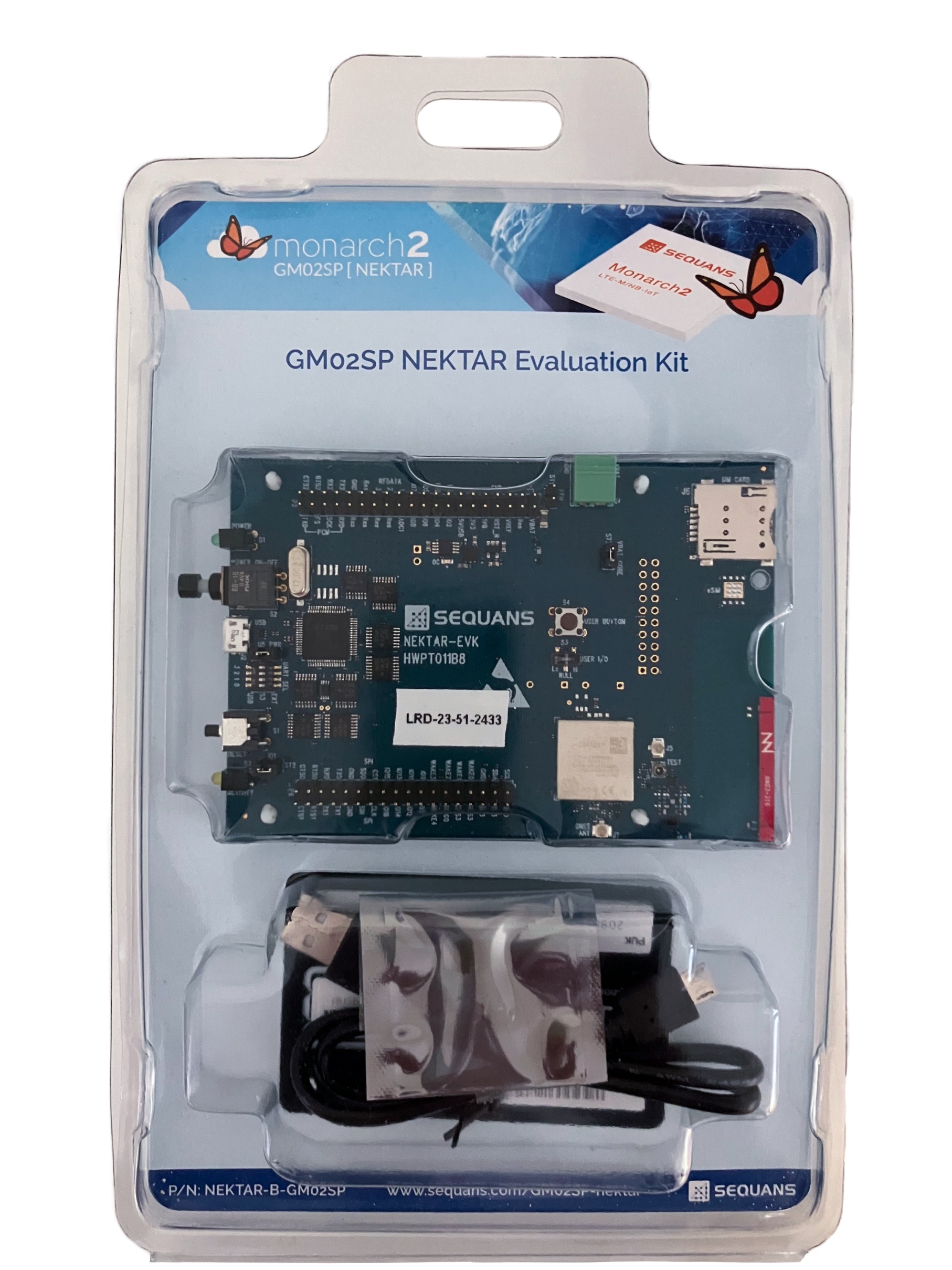
Figure 1. GM02SP EVK based blister
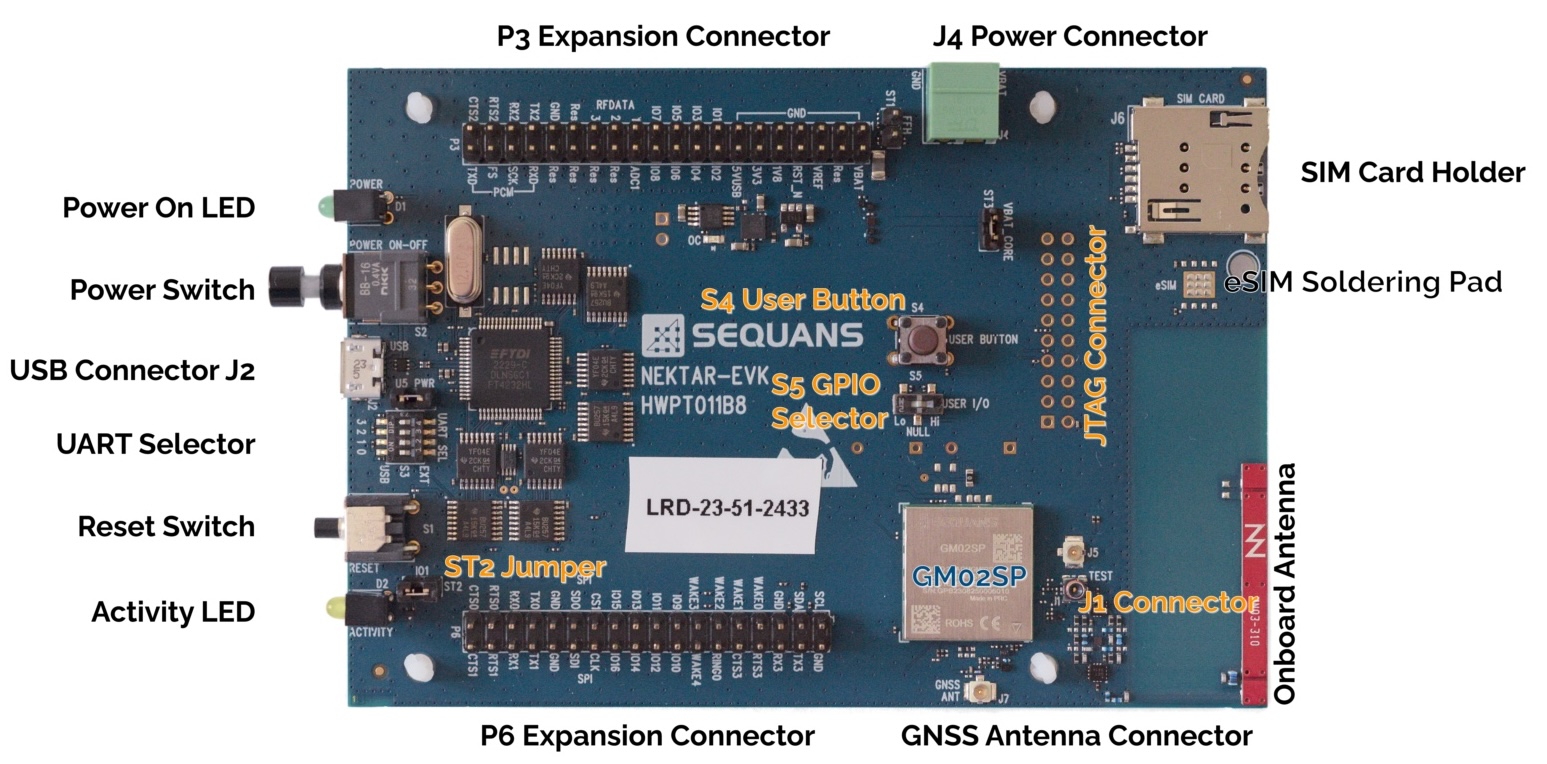
Figure 2 is a general overview of the GM02SP EVK board.
Figure 2. GM02SP EVK Board Overview
Prepare the GM02SP EVK Evaluation Kit
Insert your Micro SIM card (3FF) into the SIM slot.
Note:
This board
only supports SIM - UICC Class C interface with 1.8 V nominal voltage as described in ETSI
TS102 221.
Connect the USB port of the GM02SP EVK board to your
computer with a micro USB cable.
Install the Windows Drivers
When plugging the USB cable into your PC for the first time, you need to wait about one minute to allow
for the drivers to install on Windows™.
The USB cable powers the board and connects the UART-USB Bridge IC (FTDIc FT4232HL), which provides the
necessary ACM interfaces (virtual COM) to talk to the board using a serial protocol.
If the driver fails to auto-install, please download it manually from the FTDI chip website,
under the name ‘UART/USB’ and install it. Sequans recommends the use of the free VCP driver.
Once the driver installation is done, unplug the GM02SP EVK and
reboot your PC.
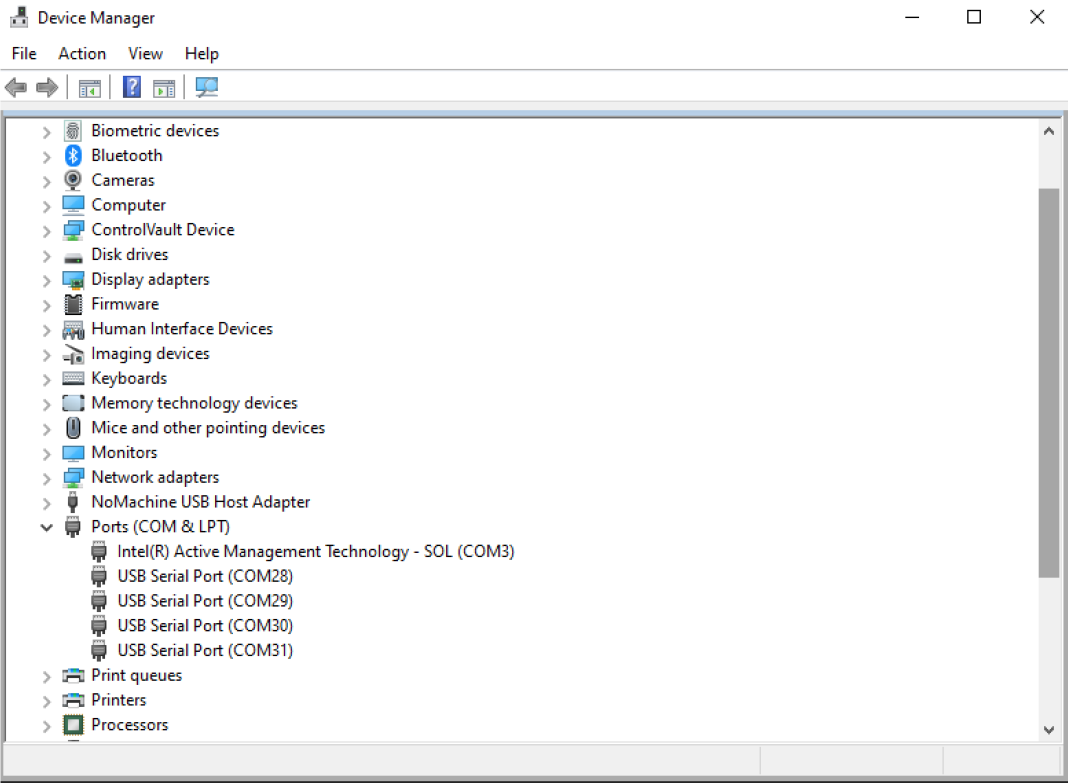
Once this is done, every time you plug the USB cable, the devices should show up in the device manager
as shown in Figure 3.
Figure 3. Device Manager once the Drivers are Installed
Setting the COM Ports
The table below summarises the COM ports under Windows™ and their corresponding UART
in the GM02SP EVK.
COM ports cannot be shared. If two applications compete for one port, one of them
will get an error.
Sending AT Commands to the GM02SP EVK requires the use of a terminal emulator program such as TeraTerm™ or PuTTY™.
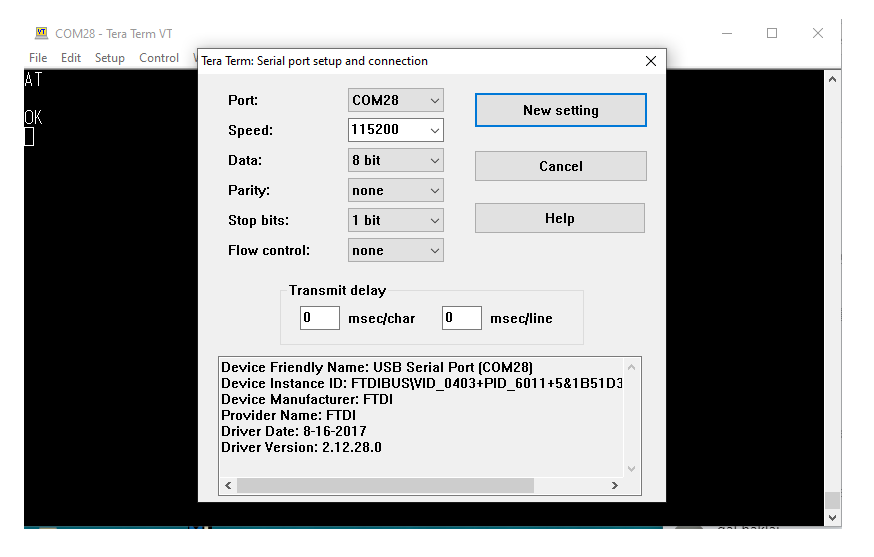
Connect the terminal to the UART 0, corresponding to COMa in the Windows™ enumeration.
Under Setup → Serial Port, choose the appropriate configuration according to the Table
above.
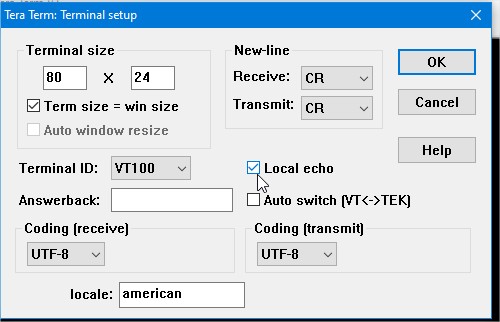
To display the characters you type, you must either activate Local echo in the
Setup → Terminal configuration screen as shown in Figure 4
or turn remote echo on by
entering ATE1 and hitting [RETURN].
Figure 4. Local Echo Setup in TeraTerm™
You should now be able to send AT commands and get responses.
Figure 5. COM28 (COMa) Setting In Progress
Activate the SIM Card
The following section explains how to activate the Soracom™ SIM card provided with
the EVK.
Soracom SIM Card
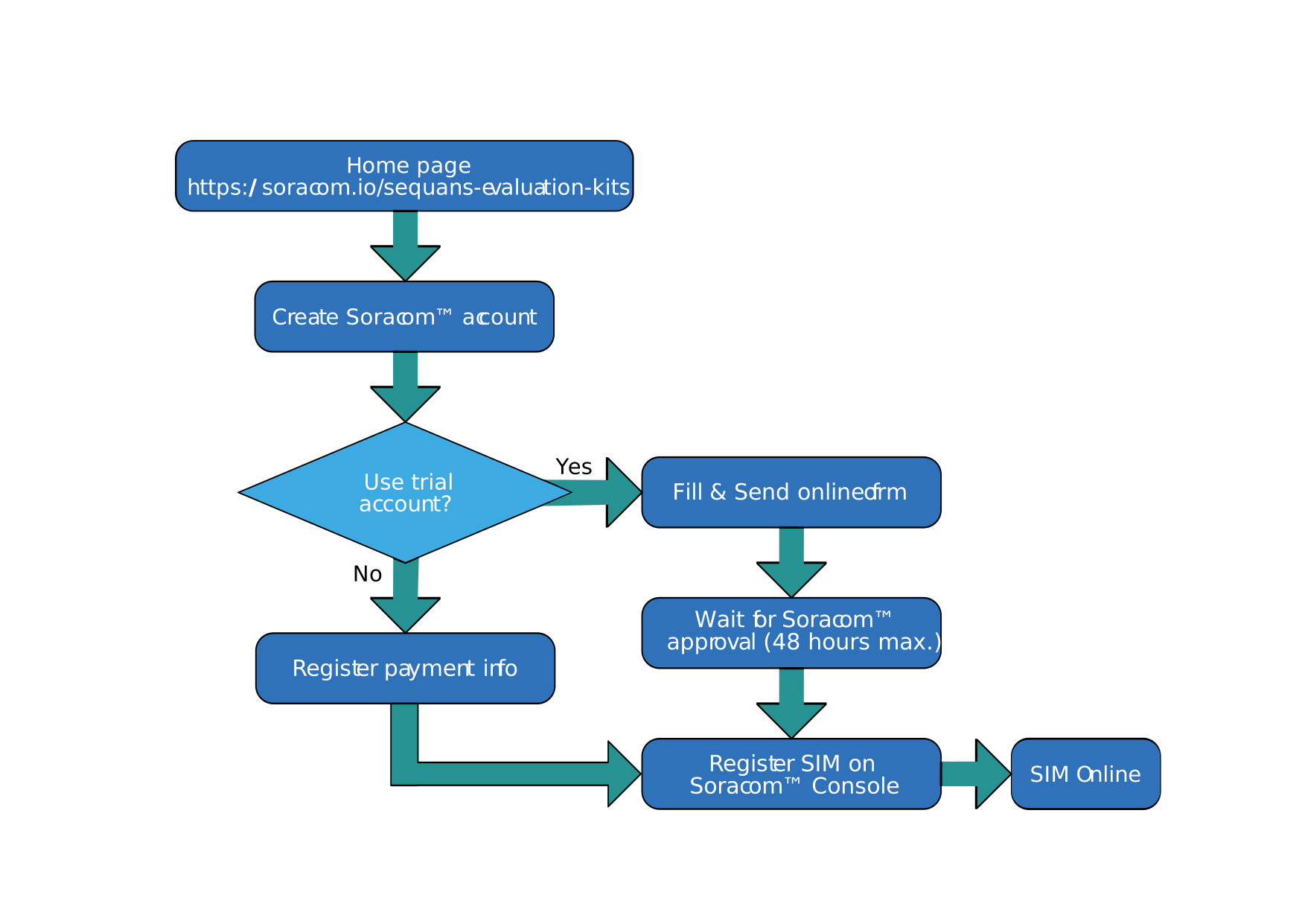
Evaluation kits with Soracom™ SIM cards come with a free initial credit of $30. They
can be registered using two different procedures:
With a standard SIM registration using a credit card. The SIM is activated immediately.
Using the dedicated registration process set up by Soracom™. Activation
requires approval.
Both schemes require the creation of a user account.
Figure 6. Soracom™ SIM Activation Flowchart
Creating a Soracom™ Account
To connect the EVK to the Soracom™ network, proceed thus:
Click on the ‘Sign Up’ option on the top right corner.
Figure 7. Soracom™’s home page.
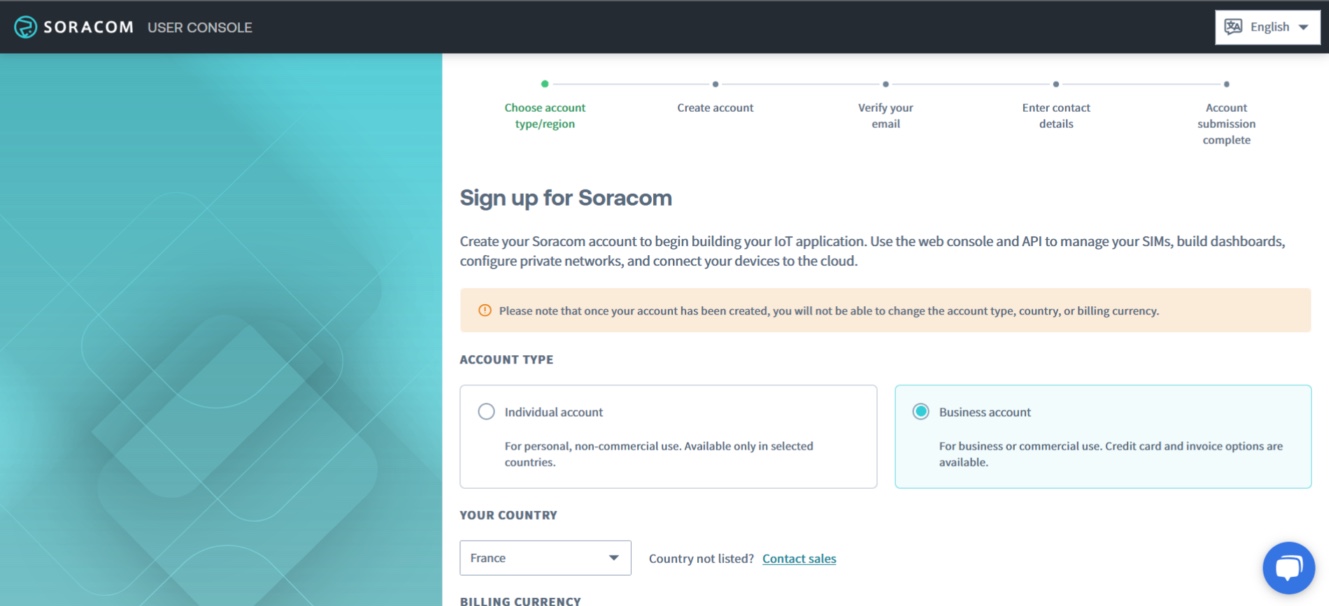
Select ‘Business Account’ and your country. If your country is not listed, please contact Soracom™ by clicking on the ‘Contact sales’ button. Finally, select your
billing currency and click on ‘Continue’.
Figure 8. First Registration Step.
Enter a valid mail address and a password to create your account. Tick the box to approve terms
and conditions, and then click on ‘Continue’.
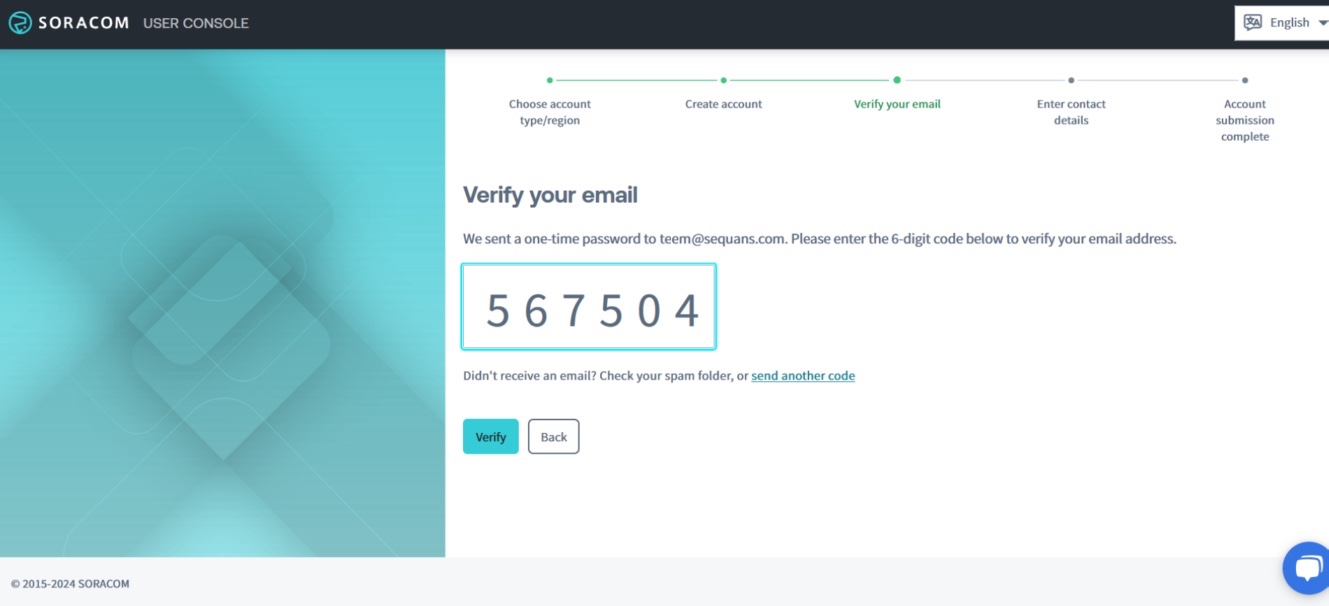
Check your mail for the confirmation code. Enter it in the field and click 'Verify’.
Figure 9. Entering the Confirmation Code Sent by Mail.
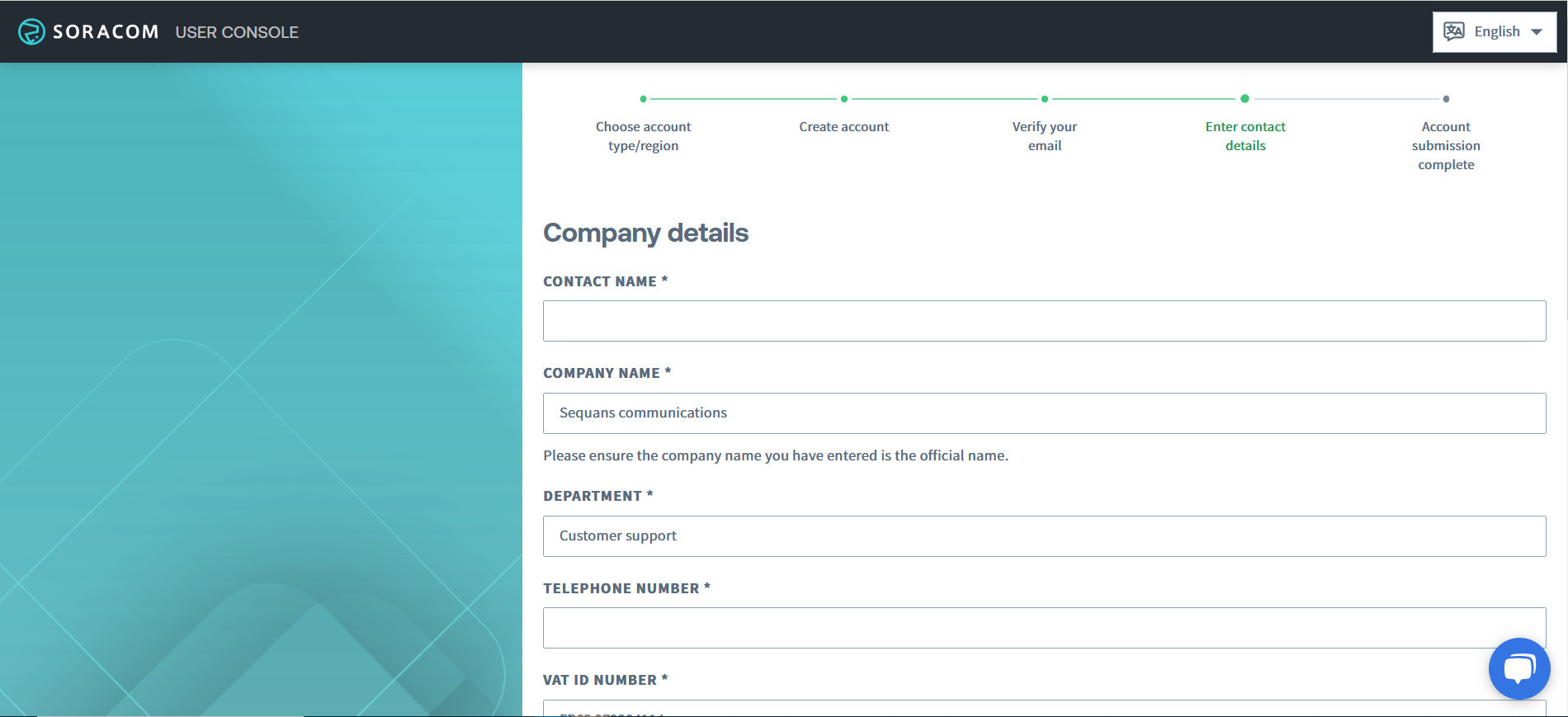
Enter your address, phone and VAT number, then click on ‘Create Account’.
Figure 10. Entering the Company Details.
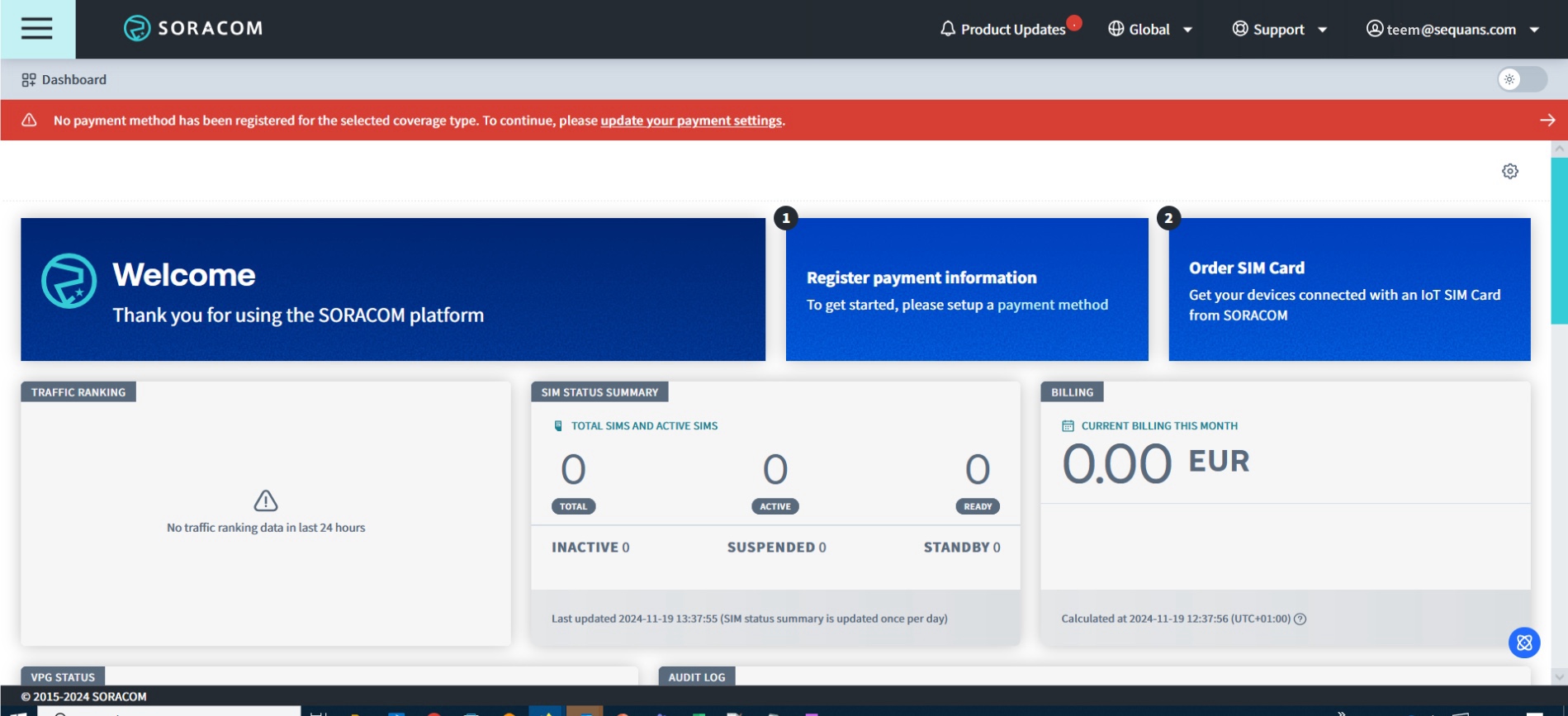
Once the account is created, you are redirected to the Console page.
Figure 11. The Console page.
Activating a Permanent Account with a Credit Card
Continue the registration process as detailed below:
The payment method has to be updated first (red ribbon atop the screen).
Enter a valid credit card number when asked.
Activating a Trial Account
If you don't want to communicate any credit card number, you can choose to create a ‘trial’ account:
Enter your name, email, company, country and the ICCID of the SIM your received with the EVK in
the appropriate form located on the main page.
Validate the information. Soracom™ will now process your request within 48
business hours.
Once the request is approved, you receive a confirmation mail at the address you entered with a
link to register the SIM.
Registering the SIM card
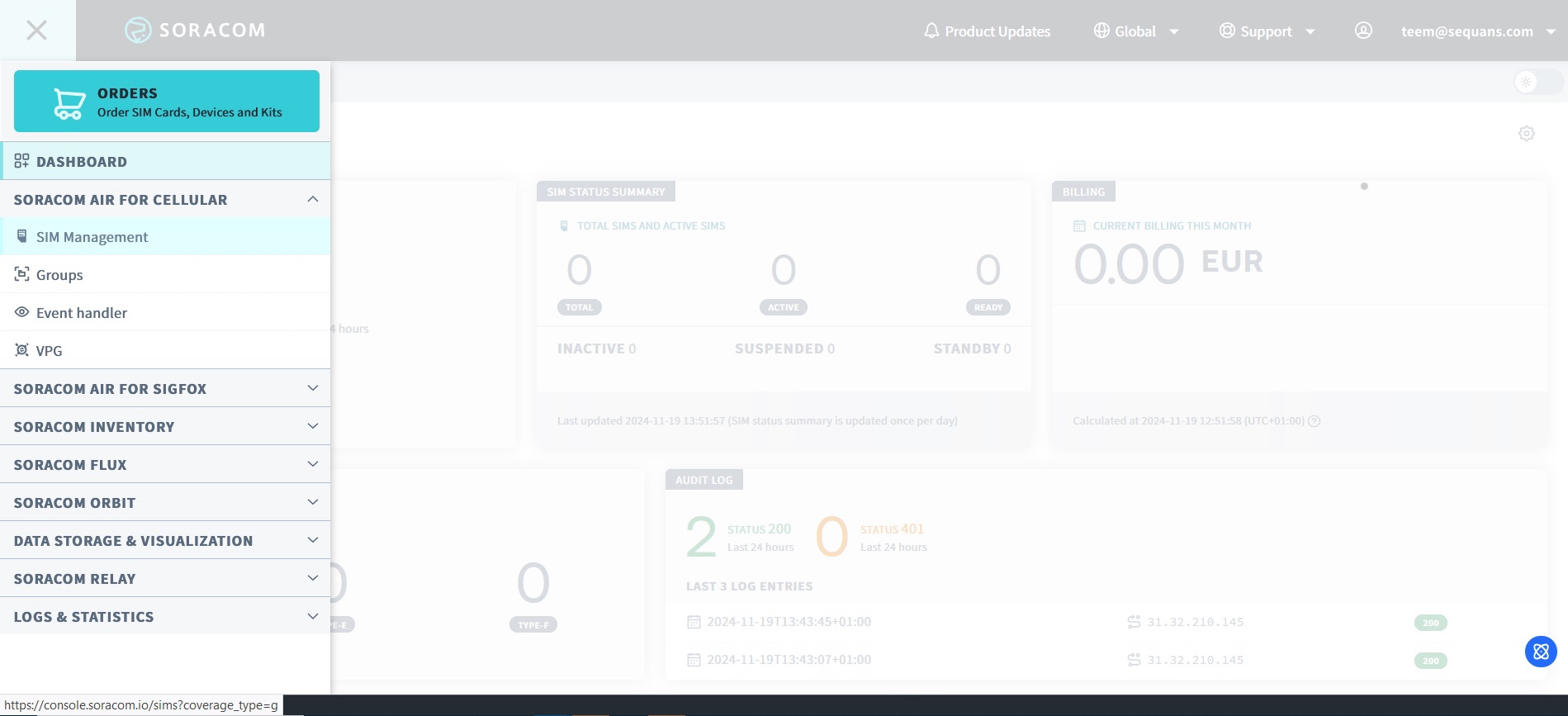
To register the SIM card with either a permanent or a trial account, go to the main page and
click on ≡ → ‘SIM Management’.
Figure 12. Open the menu and choose SIM Management.
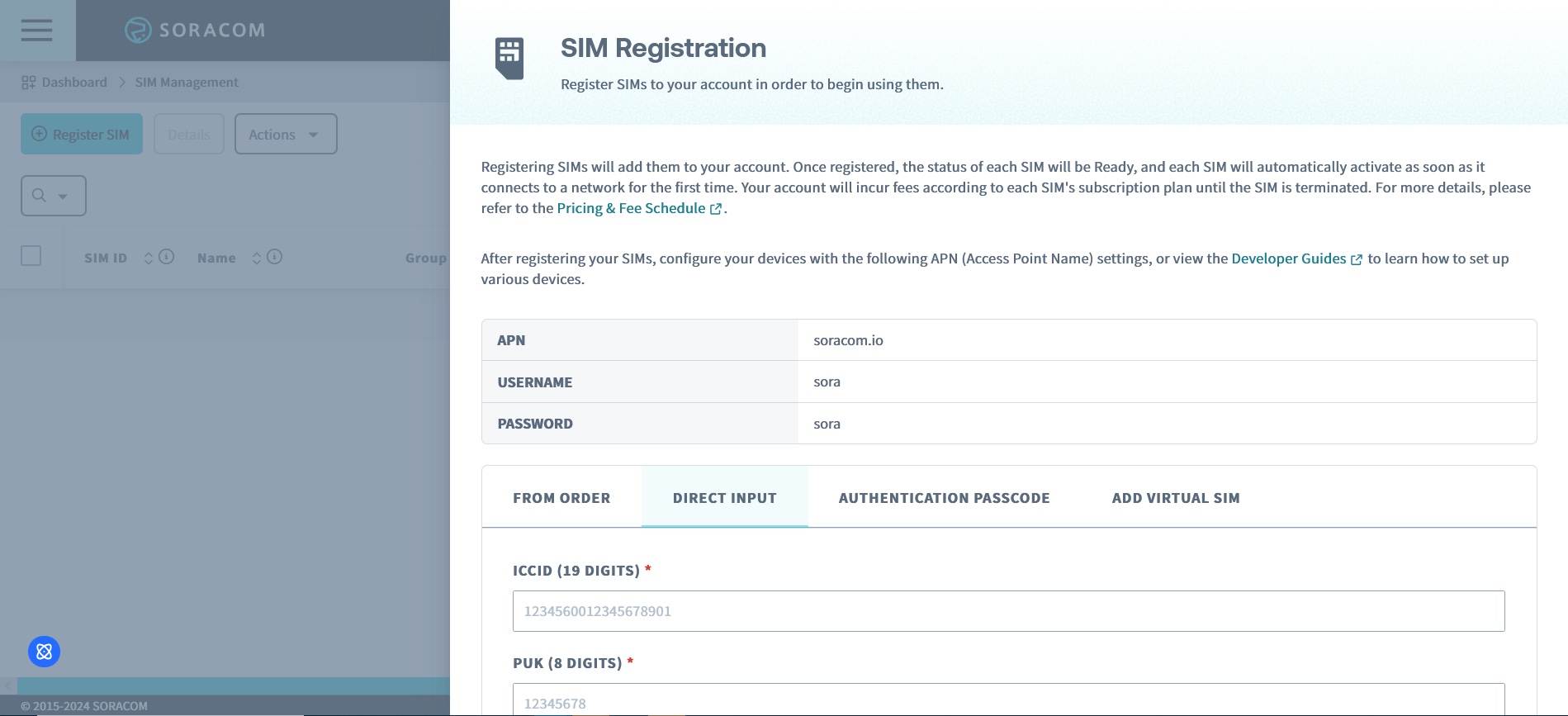
Click on ‘Register SIM’, then ’Direct Input‘.
Figure 13. Open the menu and choose SIM Management.
Enter the ICCID and PUK numbers. Registration is complete, data plan is ‘Plan01s’.
Attention:
Extending the default subscription plan attached to the Soracom™ SIM card with Soracom™’s ‘Subscription containers’ feature is
not yet supported.
Configure Supported Operators
Note:
The SIM card will be read when the modem transitions to +CFUN=1 or
+CFUN=4 states. When the SIM card is read for the first time, the modem
reconfigures itself automatically and reboots.
The modem supports up to 19 LTE bands. Scanning all the
bands takes several minutes. In order to shorten the scan, it is possible to limit its scope with the
AT+SQNBANDSEL command. Please refer to the
AT Commands Reference Manual or the
AT Commands Use Cases documents for more information.
Connect to the LTE Network
Important:
All actions described in this section assume you have access to a LTE network or
simulator.
Power on the GM02SP EVK board and check the COM port
list in the Windows™ Device Manager.
Open a Teraterm™ (or PuTTY™) terminal
for the AT command UART (UART0) COM port. Set the baudrate to 115200.
Open a Teraterm session on the AT command UART (UART0) COM port. The baud rate is 115200.
Put the UART link into smart mode to ease the AT command dialogue:
ATE1
OK
AT+SMART
OK
Enter the bands (represented by <band1>, <band2>,…) to be
scanned:
Ensure the commands returns "standard", otherwise
switch to standard operator mode with the AT command AT+SQNCTM="standard". The
modem will reboot after this command.
Note:
Please note that these configurations persist at
reboot and should be set only once.
Enter the AT command AT+CFUN=4 and check the SIM card interface state with
AT+CPIN? The response can be either:
+CPIN: READY: SIM card is present and unlocked
+CPIN: SIM PIN: The modem is waiting for the PIN code
+CPIN: SIM PUK: The modem is waiting for the PUK code
ERROR: The SIM is not inserted or not detected
Control the presentation of an unsolicited result code by sending the AT command
AT+CEREG=2. This command enables notification every time the network
registration status changes.
Power on modem with AT+CFUN=1. The modem responds OK followed
by +CEREG=<stat>.
Value
Meaning
Comment
0
The modem is not registered and is not currently scanning for a
network to register on.
Possible cause: SIM card error or registration ongoing.
Note:
The
GNSS subsystem only works when the LTE modem is off (i.e. AT+CFUN =
0).
1
The modem is registered on the network. The kit is connected.
2
The modem is not yet registered, but is actively trying to attach or
is searching for an operator to register at.
Possible causes: No network available, RSS too low, PLMN available
but registration rejected.
3
Registration denied.
Possible causes: Illegal mobile equipment IMSI unknown at HLR, PLMN
not allowed, location area not allowed, roaming not allowed in this location area,
network failure, network congestion.
4
Unknown.
Transient value.
5
Modem registered in roaming mode.
80
Transient error.
End-to-end connectivity can be tested with the following AT command:
AT+PING="www.sequans.com".
Hardware Description
Overview
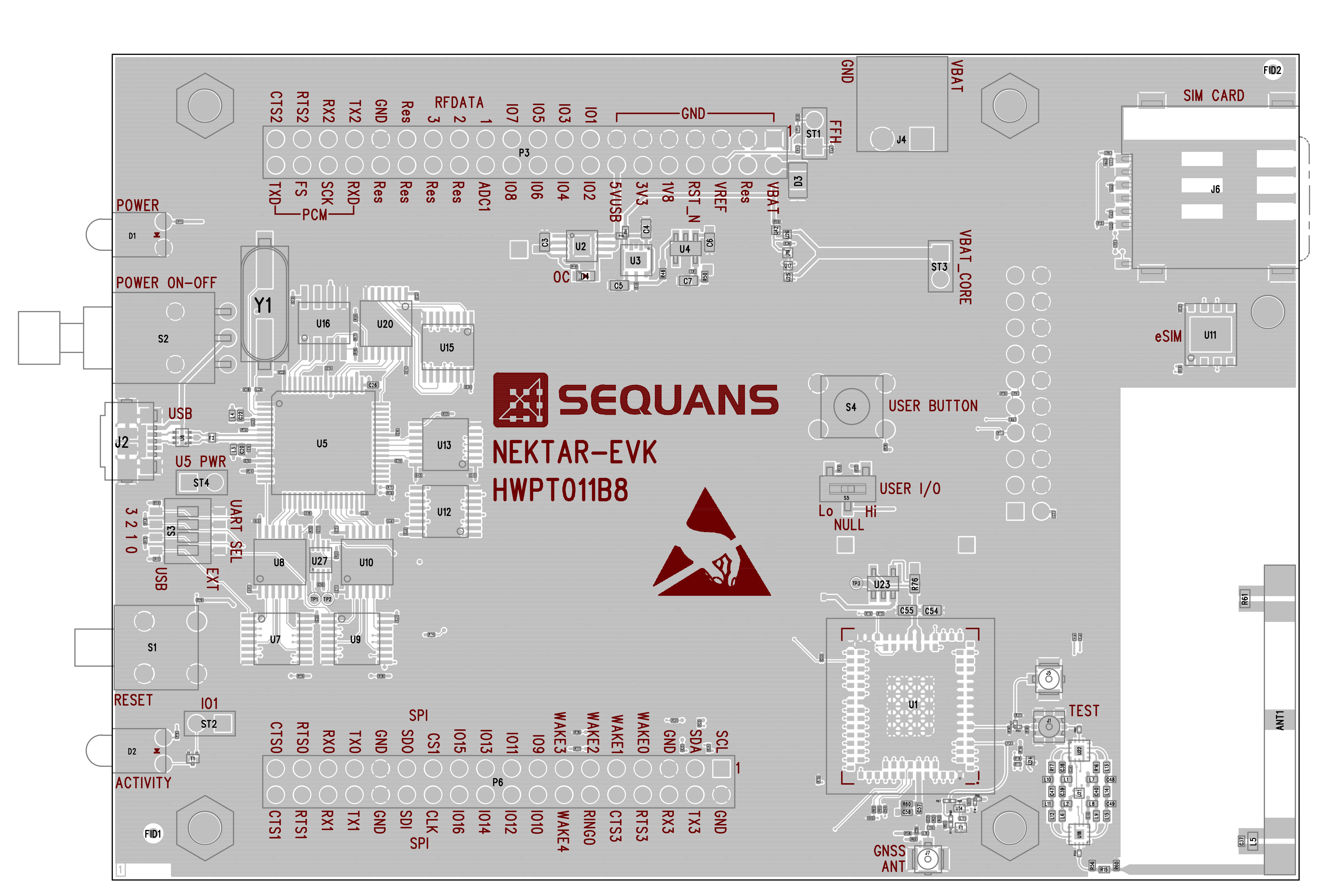
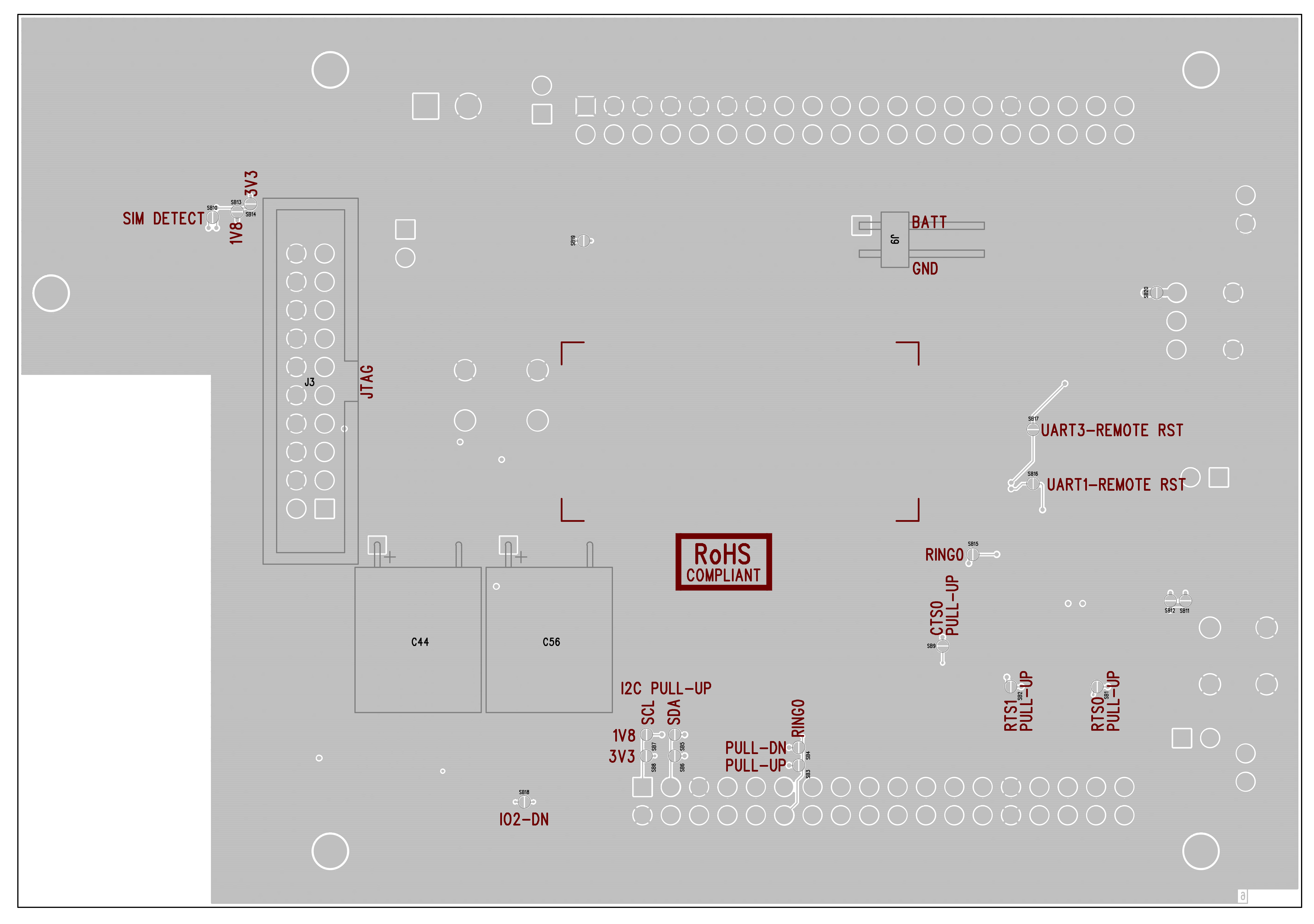
The Top and Bottom Assembly views of the GM02SP EVK are represented in Figure 14 and Figure 15.
Figure 14. Top Assembly
Figure 15. Bottom Assembly
Power Supplies
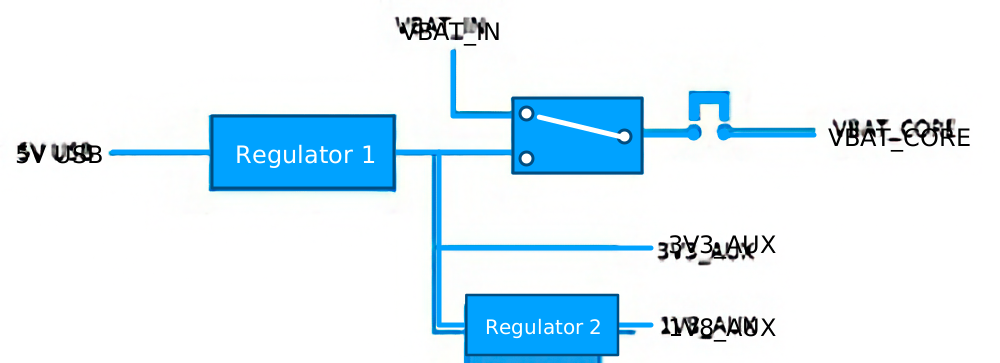
The GM02SP EVK has two power domains:
One for the entire auxiliary and debug circuitry (AUX).
One for the LTE modem (CORE).
Figure 16. GM02SP EVK’s Power Supplies
The auxiliary power domain can only be powered via USB.
The LTE modem can be powered in three different ways: USB, VBAT_IN, VBAT_CORE.
USB: When USB is connected and no other voltage is applied to the board, a regulator generates
3.3V_AUX which is used to power the LTE modem.
VBAT_CORE: The module VBAT_CORE is available on ST3 jumper. By disconnecting
ST3 jumper, the LTE module can be powered directly with an external supply. This setup is
recommended when measuring the module’s floor current.
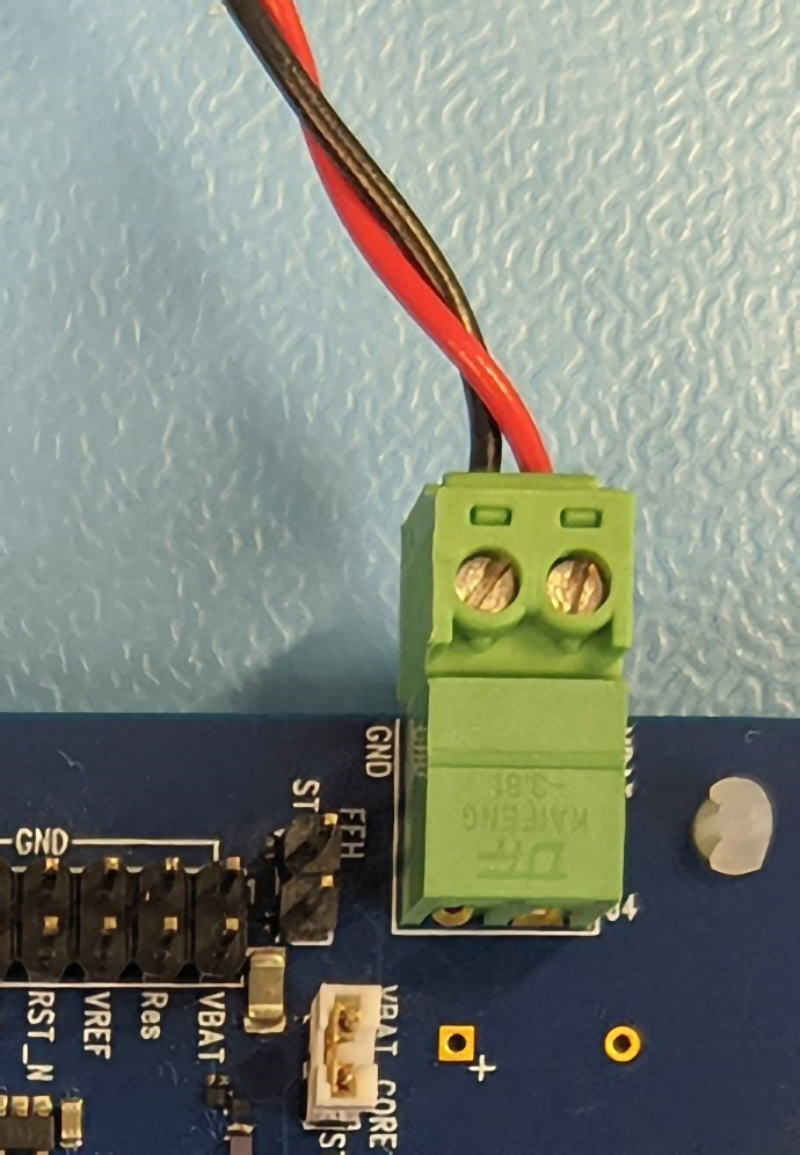
VBAT_IN: VBAT_IN is available on J4 connector and on GM02SP EVK’s expansion connector (pin 2 on connector P3).
VBAT_IN must respect the voltage range defined by the module in the GM02SP EVK board. When VBAT_IN is above 1.6V, the module power
VBAT_CORE is automatically switched from 3V3_AUX to VBAT_IN.
Note:
When
powering the LTE module via VBAT_IN, there is some extra leakage on the power supply
circuitry itself. See Table 3. It is
therefore not recommended to use this power supply when measuring the LTE module’s floor
current.
Table 3. Power Leakage with VBAT_IN as power source
The GM02SP EVK has two buttons to control power and reset:
The reset push button (S1): resets the module when pressed.
The power toggle button (S2): switches USB power ON/OFF.
USB Port and UART Switches
Hardware layout
The GM02SP EVK provides access to all the LTE modem UARTs via the
USB connector.
Each individual UART can be redirected to the GM02SP EVK’s
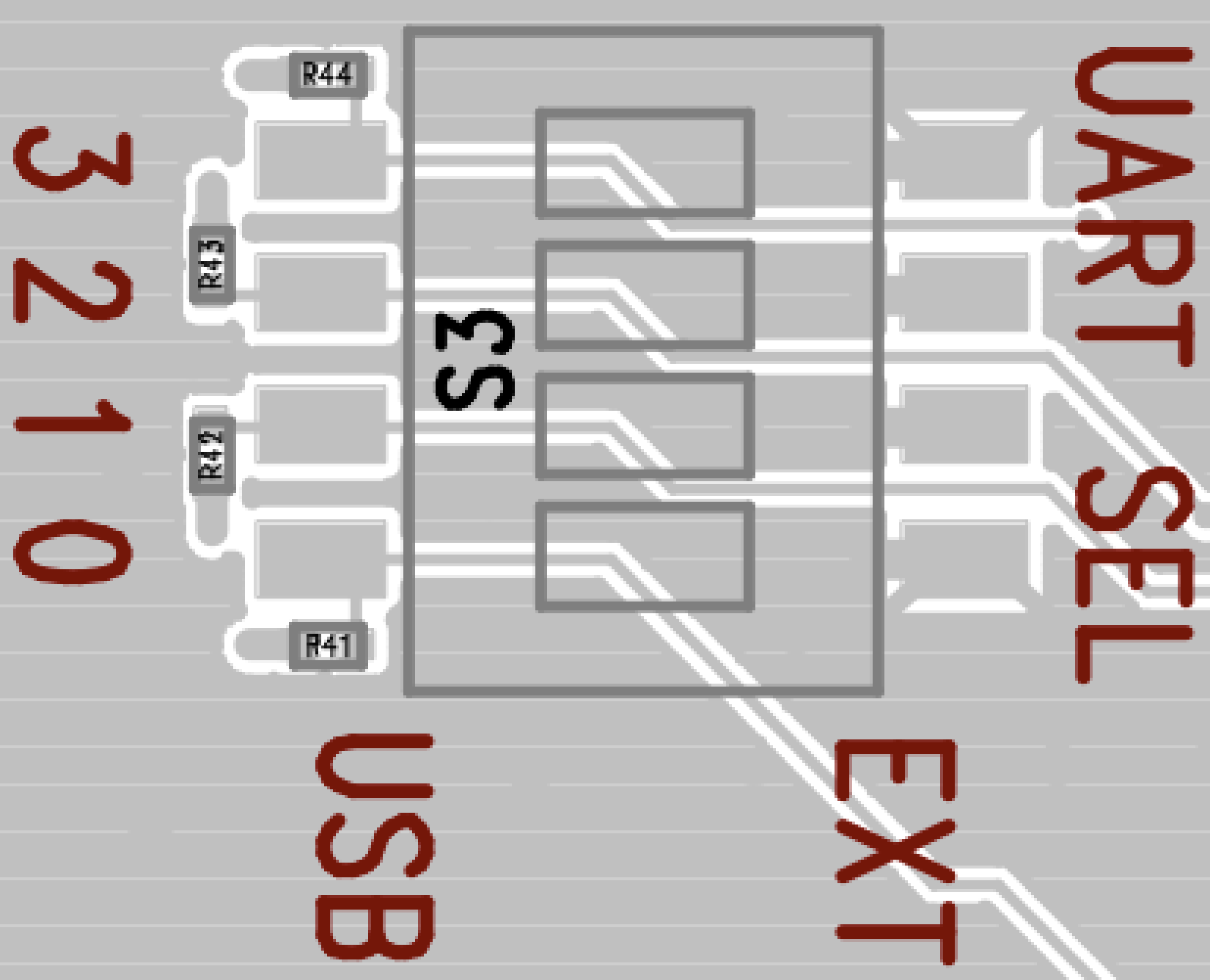
expansion connector via the S3 switch. When the switch is in "UART" position the UARTs are redirected to
the USB port (the default board configuration is USB):
Figure 17. UART Switches
UART usage in Low Power mode
During low power measurement, only UART0 should be activated. UART1 should be configured in ‘dcp’ mode
and/or the ‘ctsrts’ flow control should be disabled.
SIM Card
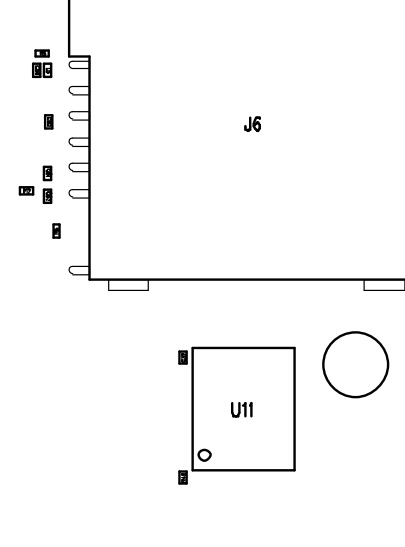
The GM02SP EVK supports either a MFF2 SIM (U11)
or a SIM inserted into the slot (J6).
The SIM slot is a 3FF micro SIM holder with push-eject function. The slot is connected to
GM02SP EVK’s SIM0 interface. This is the default SIM
interface used by the GM02SP EVK.
In addition, a MFF2 SIM can be soldered on the U11 footprint, connected to the SIM1 interface
on the GM02SP EVK. If this interface is used, please
check the
AT Commands Reference Manual to configure SIM1 as the default SIM interface. See picture below for proper placement.
Note:
This board only supports SIM - UICC Class C interface with 1.8 V nominal voltage as described in
ETSI TS102 221.
Figure 18. eSIM Placement on Board
LEDs
The board has three LEDs:
The power LED (D1) turns on whenever there is USB power.
The activity LED (D2) follows the network activity if the ST2 jumper is fitted and the ACTIVITY
LED function is enabled on the module (using the AT command AT+SQNLED, please
refer to
AT Commands Reference Manual for details).
The overload LED (D4) turns on when the current drawn from the USB_VBUS
supply exceeds 1 A, which can happen if the 5V0_USB is mistakenly shorted on the P3 expansion
connector.
User Button and Switch
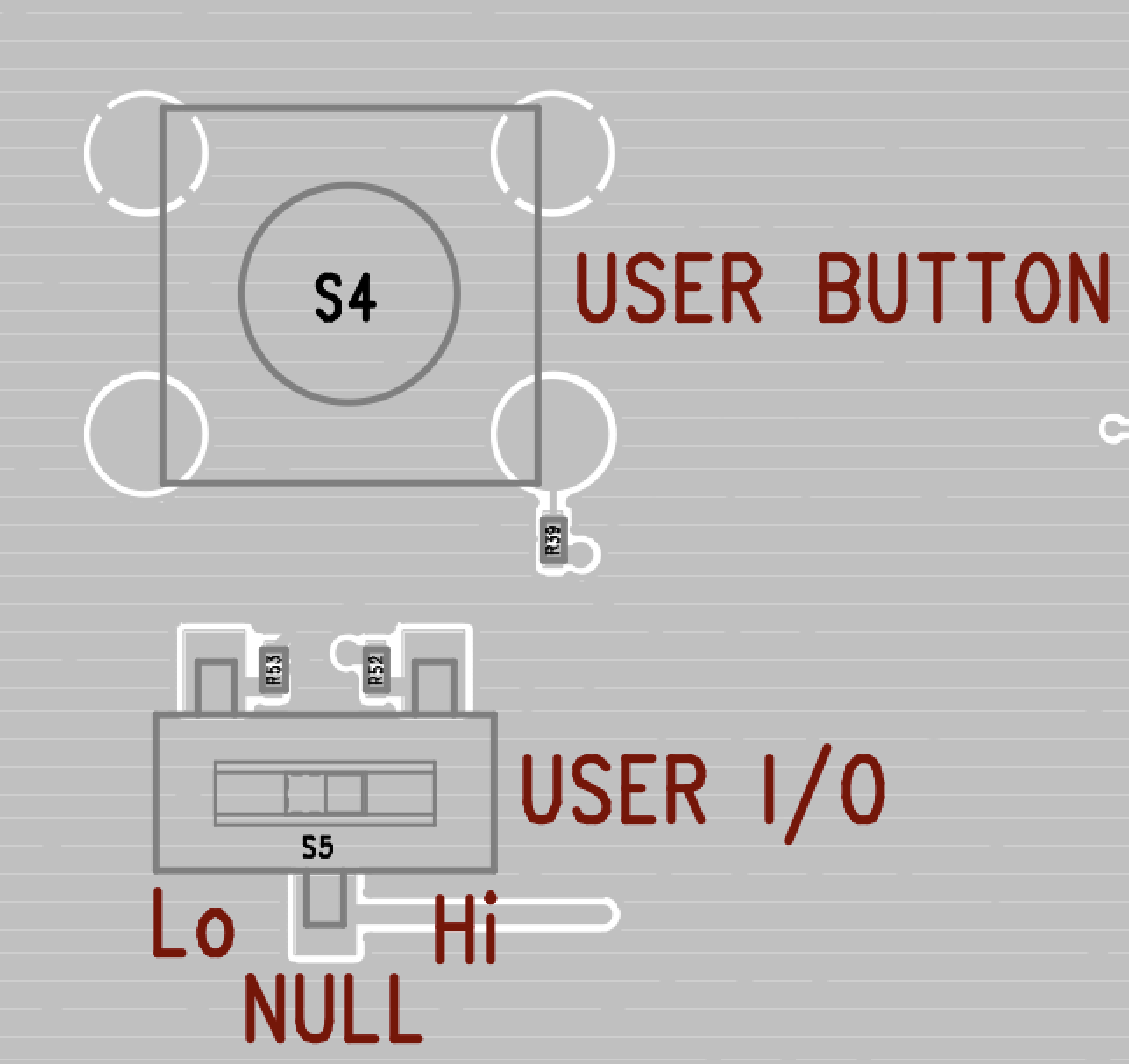
The GM02SP EVK board provides a user button (S4) and a user
switch (S5).
Figure 19. User Button and Switch
GM02SP EVK Expansion Connectors
The expansion connectors of GM02SP EVK
boards are intended to:
Allow hardware designers to connect external peripherals for prototyping.
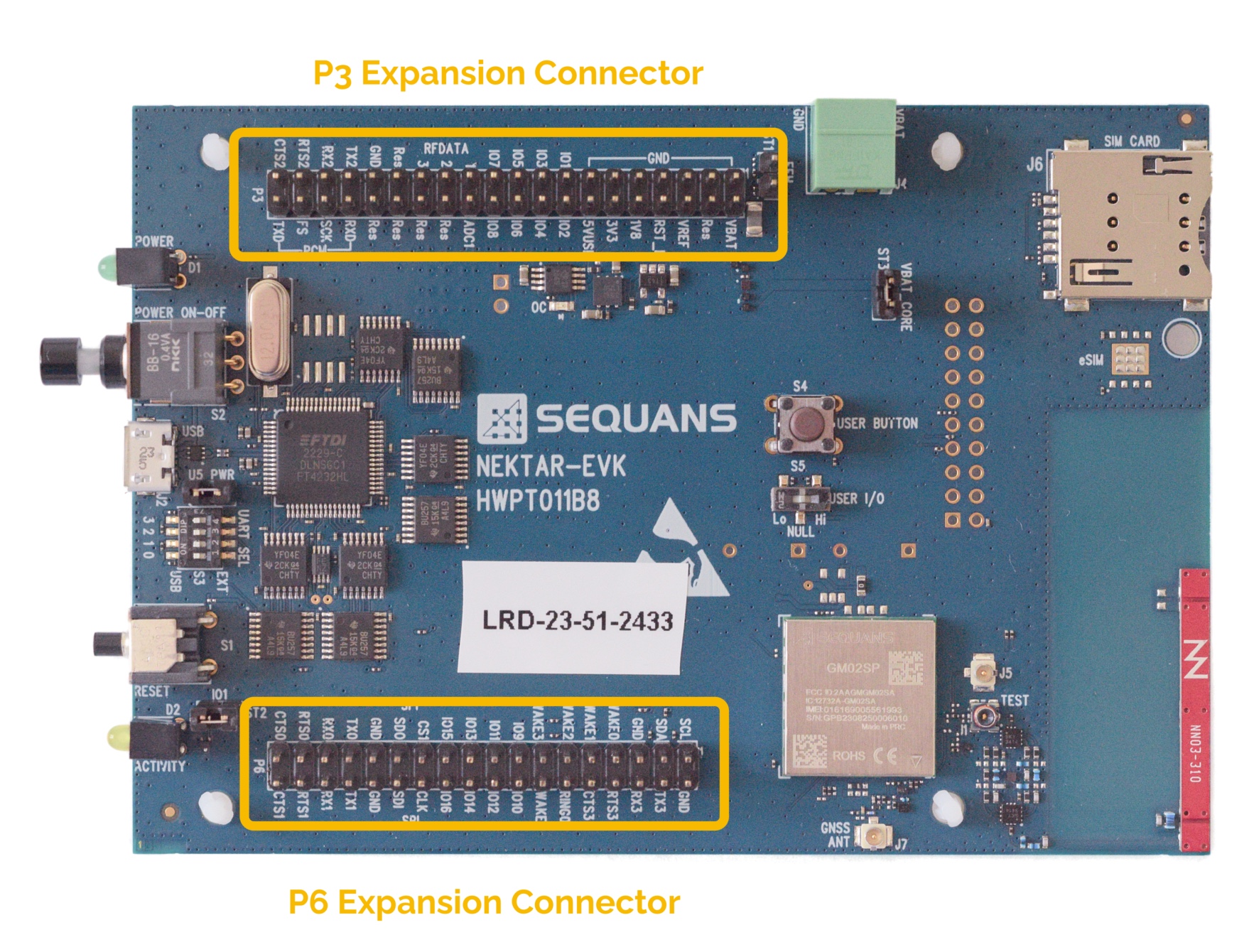
Two expansion connectors are available on the GM02SP EVK board.
They provide access to all modem interfaces.
Figure 20. Expansion Connectors Location on the GM02SP EVK
board
Note:
The logic signals of the expansion connectors use 1.8 V voltage. Some signals tolerate higher
voltages. Please refer to the module data sheet for more information.
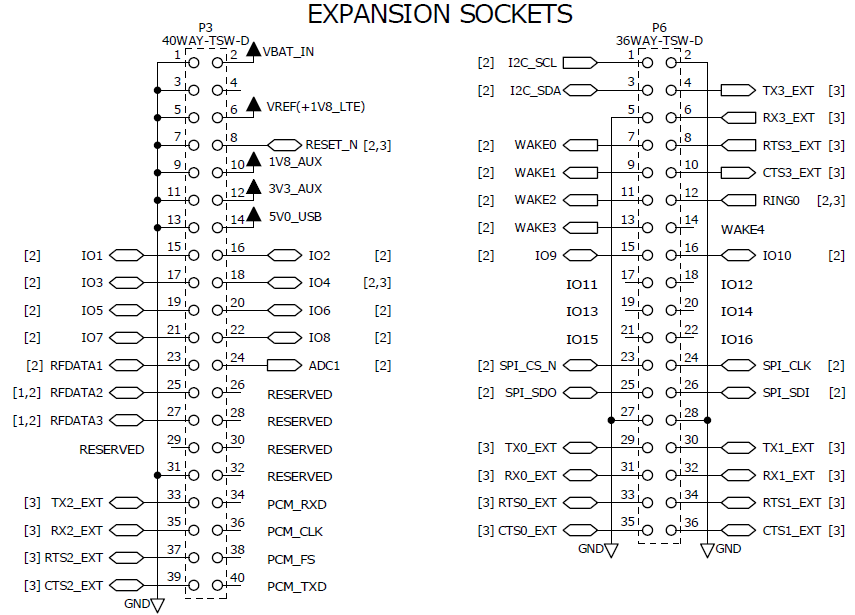
Figure 21. Expansion Connectors Schematics
Table 4 provides the correspondence between the GM02SP EVK signals and the module signals.
The GM02SP EVK includes an integrated antenna with a matching
circuit. The matching circuit’s topology is driven by two of the module GPIOs according to the operating
frequency.
The integrated antenna data sheet can be found here.
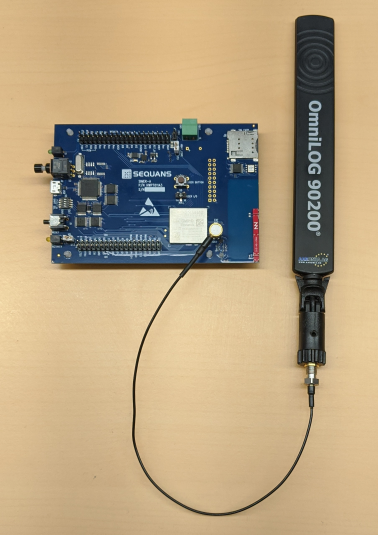
In addition, the GM02SP EVK features an RF connector (J1) to tie
the board to an external antenna or test equipment. This connector is compatible with Murata®’s MXHS83QE3000 cable.
Note:
When an external antenna is used, the internal antenna is
disconnected.
Figure 22. Connection of an External Antenna
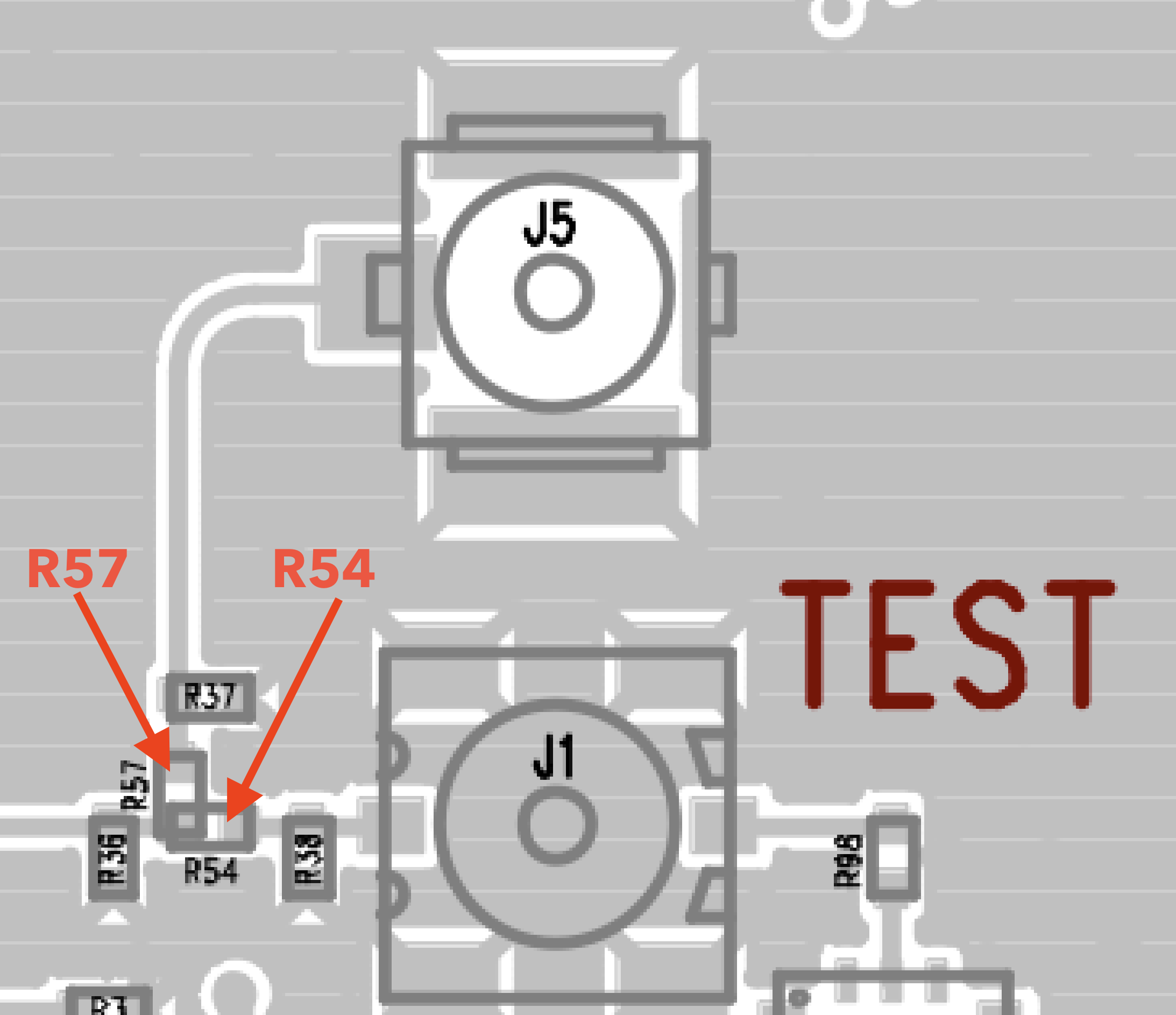
Alternatively, a µFL connector can be soldered at J5. This requires also soldering a shunt at R57 and
removing R54, located as shown in Figure 23
.
Figure 23. R57 and R54 Location on Board
Troubleshooting the Integrated Antenna
If the integrated antenna does not seem to work (the board cannot attach or does not report any
available network), check that the antenna tuning configuration is valid and enabled, as antenna tuning
configuration is lost during a raster upgrade.
During a SFU raster, using the --keep-all option preserves the calibration file (it is
saved and restored):
If the configuration reported is wrong, it can be restored by using the
same command:
AT+CFUN=5
OK
AT+SQNHWCFG="antennaTuning","enable","0x0","617,698,0x0,698,797,0x2,797,887,0x1,887,2200,0x3"
Reset the board to validate the changes.
GNSS Antenna
In order to be able to use the optional Low-Power GNSS functionality, a GPS-compatible antenna or test
source must be connected to the J7 coaxial connector.
A cable is provided with the kit to allow standard SMA-type
connection.
A GNSS antenna is also supplied in the kit for user’s convenience.
Default Positions of Jumpers and Switches
Default factory position of all the board’s jumpers and switches are summarised below:
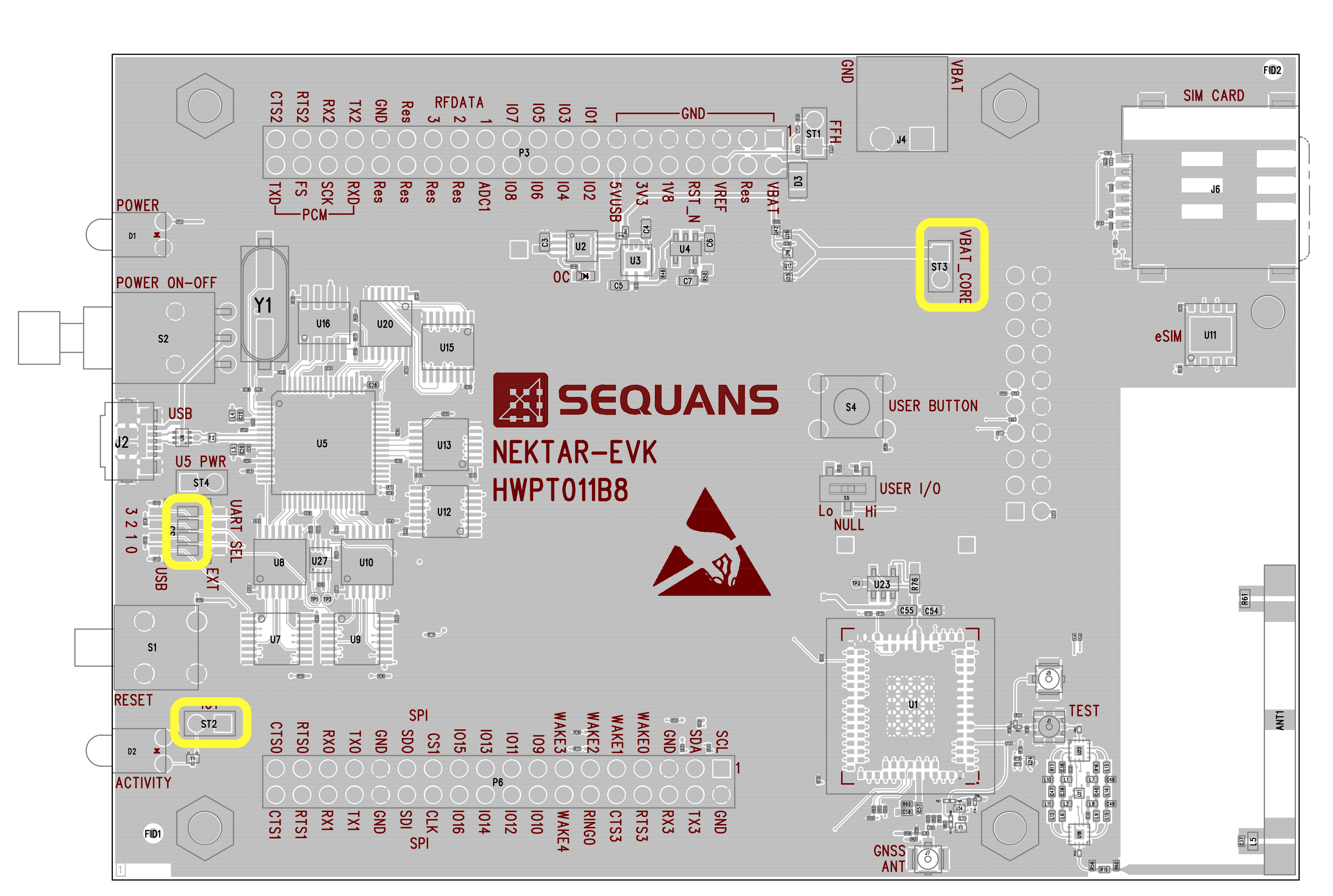
ST2 and ST3 jumpers are fitted
S3 is set in ‘UART’ position in order to redirect the UARTs to the USB port
Figure 24. Default Jumpers’ and Switches’ Positions
Advanced Functions
How to Connect an External Power Supply
Power via VBAT_IN on J4 Connector
The external power supply can be tied to the Power Input connector J4 (VBAT_IN). When
the supply voltage at VBAT_IN rises above 1.6 V the module power VBAT_CORE switches from 3V3_AUX to
VBAT_IN. This is shown in Figure 25.
Note:
J4 is a 2-pin, 1-row, right angle PCB terminal block header. To connect to J4, a 3.81 mm
pitch, 2-pin PCB terminal block can be used.
Figure 25. External Power Supply Connection at J4
VBAT_CORE power selection at the ST3 Connector
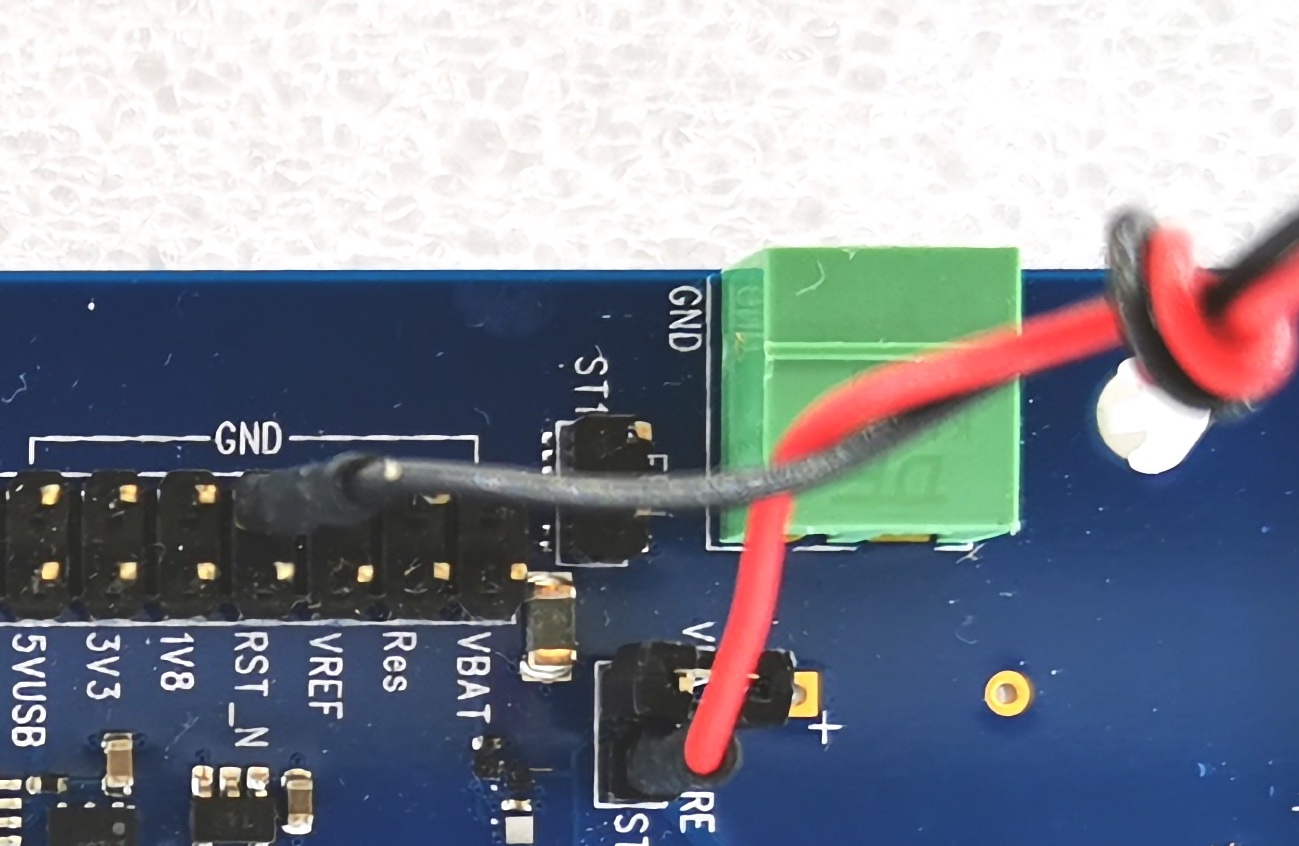
The external power supply can be connected to ST3 VBAT_CORE for the module VBAT 1 to
supply and measure power as shown in Figure 26.
Note:
The DC output of the power supply must be connected to the ST3 bottom pin and
the ground to one of the pins marked as GND in the P3 connector.
Figure 26. ST3 View to Connect an External Power Supply
How to Connect an Ammeter
Strap ST3 can also be used to connect an ammeter. Current must be measured from this point, otherwise
there is a risk of taking in additional current from the host board.
If a current measuring power supply is used, power should be connected as shown in Figure 25.
During power consumption measurements, if VBAT is set to or below 2.4 V, a capacitor of at
least 820 µF must be soldered between VBAT and GND, otherwise random resets can occur.
How to Perform a Remote Reset
When using the GM02SP EVK on a remote setup, it may come in handy
to reset the board from the host PC. A remote reset can be performed using one of the UART1 ports
available on the USB connector J2.
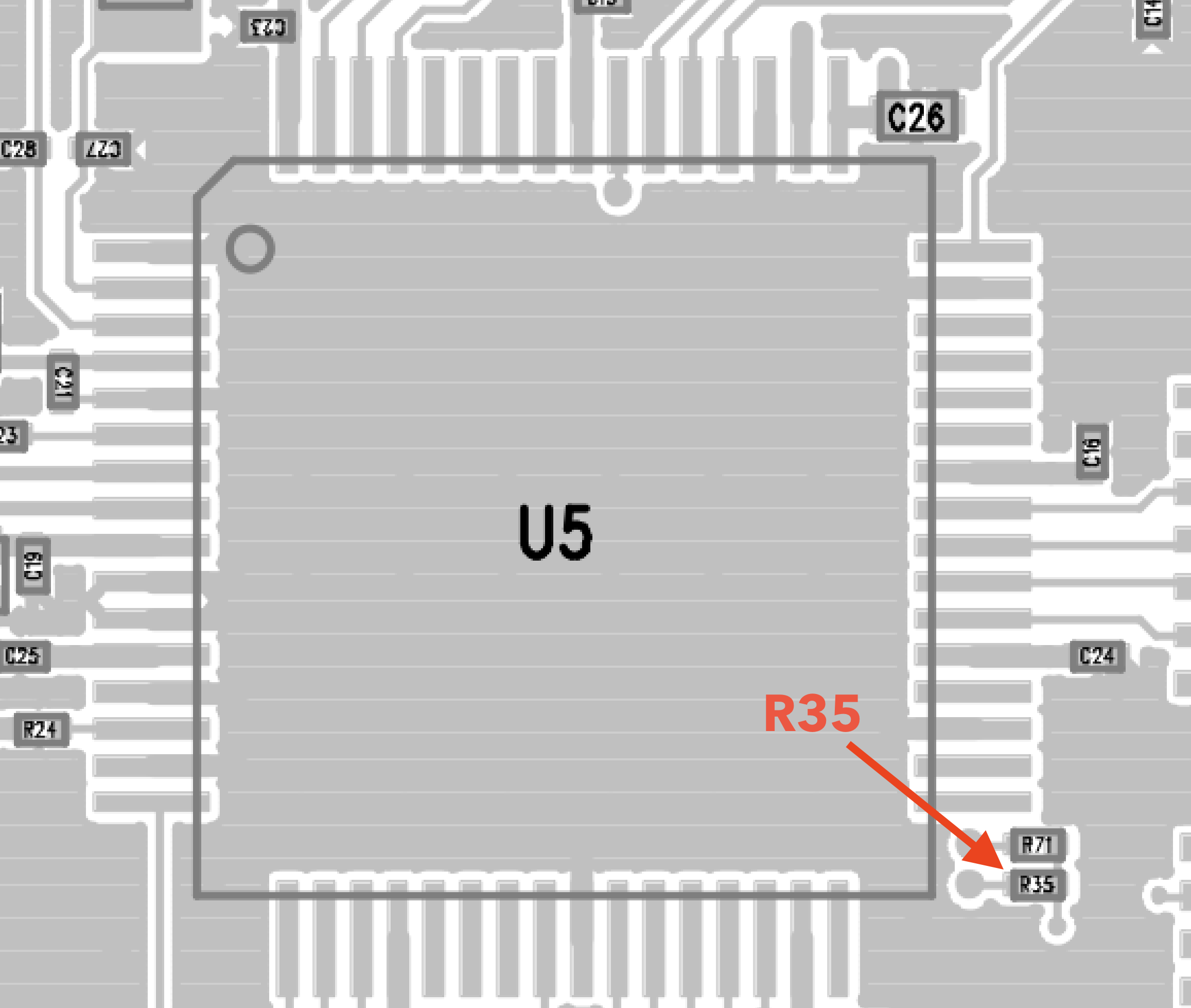
To enable the remote reset functionality, install a 4.7 kΩ resistor at R35.
Figure 27. R35 Location on Layout
The remote reset consists in toggling the UART1 DTR function from high to low, then back to high. The
TeraTerm™ script below does this:
This script sets DTR high for 1 second, then low for 1 second, and finally high
again (to reset the platform).
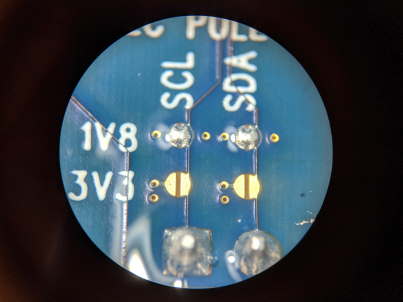
How to Modify the Board by Soldering Bridges
CAUTION:
Always check the schematics of the current revision of your board before altering
solder bridge jumpers!
Table 5. Solder Bridge Jumpers Identification
Solder Bridge #
Action
SB1
RTS0 pull up to 3V3_AUX
SB2
RTS1 pull up to 3V3_AUX
SB3
RING0 pull up to 3V3_AUX
SB4
RING0 pull down to GND
SB5
I2C_SDA pull up to 1V8_AUX
SB6
I2C_SDA pull up to 3V3_AUX
SB7
I2C_SCL pull up to 1V8_AUX
SB8
I2C_SCL pull up to 3V3_AUX
SB9
CTS0 pull up to 1V8_AUX
SB10
SIM_DETECT connect to Switch in SIM holder J6
SB11
RESET_N pull up to 3V3_AUX
SB12
RESET_N pull up to 1V8_AUX
SB13
SIM_DETECT pull up to 1V8_AUX
SB14
SIM_DETECT pull up to 3V3_AUX
SB15
RING0 connect to FTDI Ring Indicator A
SB16
connect RESET_N to UART1-REMOTE RST
SB17
connect RESET_N to UART3-REMOTE RST
SB18
PS_STATUS pull down to GND
Figure 28 shows 2 bridged and 2 non-bridged jumpers.
Figure 28. Bridged and Non-bridged Solder Bridge Jumpers
Solder bridges can be created or removed using a soldering iron to make or break a connection as shown
in Figure 29.
Figure 29. Soldering Ball at a Solder Bridge Jumper
How To Get a First GNSS Fix
When first asked by the host, the GNSS subsystem has to scan the sky for visible satellites in order to
compute its position (‘first fix’). This operation can take over thirty seconds if the device’s location
is unknown and no ephemeris is available. It is, however, dramatically sped-up if the scanning algorithm
is given both the exact time and an approximate position within a 100 km radius. With this information
and the help of an ephemeris, the algorithm determines which satellites ought to be visible and narrows
down the scanning, which results in a much faster time-to-first-fix.
Table 6 shows how to download the
online ephemeris, enter both the time and the approximate position, and ask the device for a first
accurate location determination. If the device is used in a location where no LTE-M network is
available, please consult the GNSS Application Note for instructions.
Table 6. Get a First Fix with AT Commands
Command
Response
Comment
Check if ephemeris assistance is valid.
AT+LPGNSSASSISTANCE?
+LPGNSSASSISTANCE: 0,0,0,0,0 +LPGNSSASSISTANCE: 1,0,0,0,0 OK
No almanac or ephemeris available.
Connect to the network to download a valid
ephemeris.
AT+CFUN=1
OK
Power on LTE modem.
+CEREG: 2 +CEREG: 5,"2E19","033E2D21",7
Wait for URC showing that the network connection is available.
AT+CCLK?
Check if the time is correct.
+CCLK: "21/10/26,8:35:55+32" OK
If the returned time is not correct, you can set it
manually with AT+CCLK=”21/10/26,8:35:55+32”.
AT+LPGNSSASSISTANCE=1
OK
Request ephemeris loading from the cloud with UTC time.
+LPGNSSASSISTANCE: 1
AT+LPGNSSASSISTANCE?
+LPGNSSASSISTANCE: 0,0,0,0,0 +LPGNSSASSISTANCE: 1,1,1067,6133,6133 OK
AT+CFUN=0
Power off LTE modem.
OK +CEREG: 0
Disconnect the modem from the network.
If the position is known with a 100 km accuracy, upload
it to the GNSS. Approximate positions can be read on online map services such as
Google Maps or Apple Maps. Format is latitude, longitude,
elevation.
AT+LPGNSSAPPROXPOS=”25”,”121”,”33”
This is needed only for the very first GNSS fix or if the device moved by more than
100 km since the last fix.
OK
AT+LPGNSSCFG=0,2,2,,1,1
OK
Set the config
If the device’s position is totally unknown, set the acquisition mode to cold start
(0). Set the acquisition mode back to hot start after the first fix and as long as
the device is not moving of more than 100 km between two GNSS fixes.
GNSS satellite information reported: (32, 45), (25, 41), (10, 36), (31, 38), (23,
35), (12, 40), (26, 30), (29, 28). The first number in the parentheses are the
satellites PRN (Pseudo-Random Noise) and the second number is the CN0 (signal
quality) of this satellite.
A CN0 above 40 is very good, between 30 and 40 average/good, below 30 weak.
Note that the verbosity level of the URC depends on the configuration of the
GNSS.
Read the results from the flash to empty the
buffer.
AT+LPGNSSGETFIX=0
+LPGNSSGETFIX: 0,2021-10-26T08:40:31,808,3.515542, 25.078176,
121.573455,33.596120,0.015981,-0.408398,-0.312934,
kYGiTv3hAAA[…]AoAwAA7LqoqqqI,(32,45),(25,41),(10,36),(31,38),(23,35),
(12,40),(26,30),(29,28)
OK
GM02SP EVK Daughter Board Design Guidelines
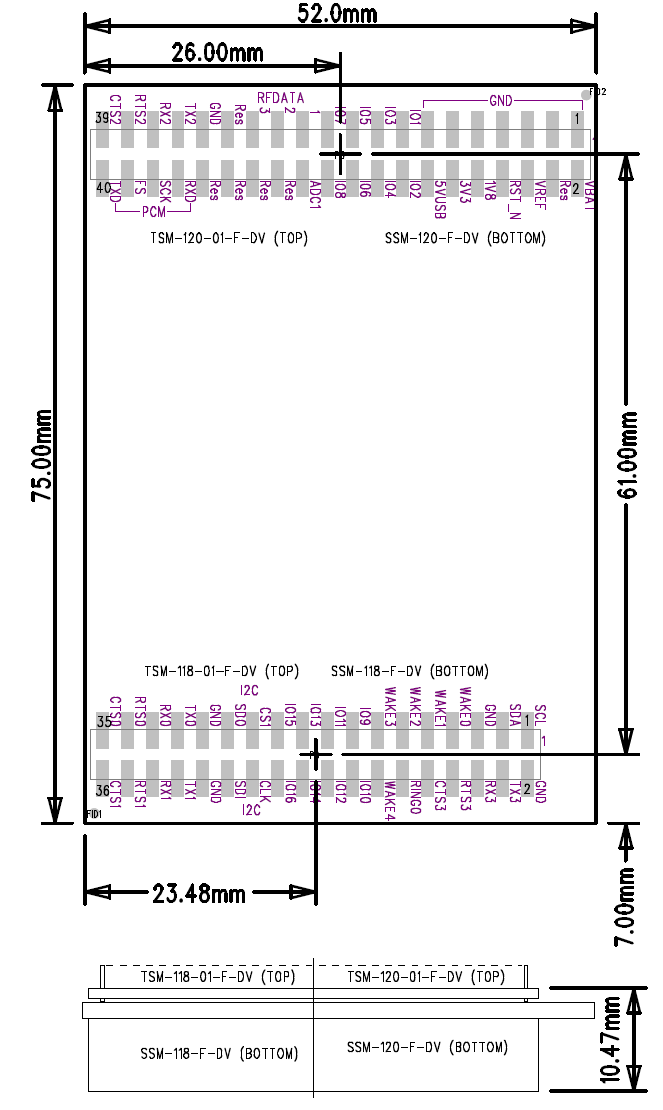
Board Size
The daughter board size must comply with the following specification.